Navigation

8/14/2019

Epson t88v receipt printer network setup


Had to setup an Epson T88v printer:


Getting initial printer and Ethernet adapter settings (Type IV)
Get the initial settings of the Ethernet adapter. Run the printer self test (hold down the feed button while turning on the printer). The printer will print a list of initial settings including interface type and buffer capacity. verify that the interface is "Ethernet"
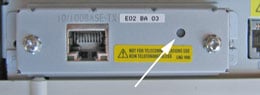
A similar test can then be done on the UB-E03, UB-E04 adapter by inserting a paperclip through the small hole in the adapter for 3 seconds.
A strip will print showing the MAC address, Gateway (GW), IP address and IP assignment method (manual/auto).
Changing the IP Address of the Adapter
Now comes the tricky part. To be able to change the IP address on the adapter you need to be able to connect with it. To do this you most likely need to change the IP address of your computer to a value that makes the adapter accessible. You can then connect to the adapter, make the change to the adapter, then return the computer back to it's original settings.
Note: the mPOS version of the UB-E03, UB-E04 Ethernet cards are set to DHCP and will try to find an available IP address on its own the first time it appears on your network. If successful, it will print out the IP address it is using. If the address is acceptable to you then skip to section about Configuring the Computer for work with the Ethernet card. LOGIN INFORMATION  - Epson UB-E04 Cards also require you to enter a user name and password.
The default values are epson / epson
Resetting the Adapter
You can reset the UB-E03, UB-E04 Ethernet Interface card to factory defaults by holding down the push button on the card (see arrow above) while turning on the printer power and continuing to hold it down for 5 seconds. This causes all internal settings to return to their factory defaults. For the older UB-E02 cards, hold the push button down after the printer is on for 30 seconds.
Setting the IP Address on your Computer
In Windows you can access the wired Ethernet adapter in the "Network Connections" applet in the Windows Control Panels (Internet Protocol/TCP/IP properties, allow you to enter an IP address.) Make a note of the existing settings, you'll be returning to those settings when your done. Set the IP address to an address in the same domain as the adapter. For example of the adapter shows an IP address of 172.16.10.63 you could change the computer to 172.16.10.2.  Do not set the computer to the same address as the Ethernet adapter on the printer. You might have to reset the computer's adapter for the new settings to take place.
Logging onto the Adapter using TMNet WebConfig (Type II or Type IV)
TMNet web configuration allows you to access the adapter via your network using a web browser. Generally speaking the adapter must be in the same sub domain as the computer to be able to log on (see previous section for how to configure the PC to the same subdomain)
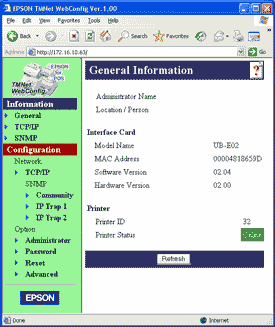
Using a web browser such as Internet Explorer you should now be able to connect to the adapter by entering the IP address of the adapter directly into the address bar of the browser. The TMNet General Information page show open.
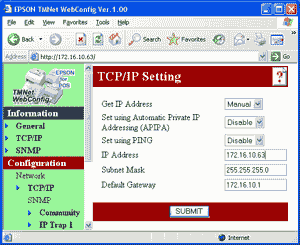
To change the IP address, select 'TCP/IP' under 'Configuration.' You can enter a new IP address and gateway address. Press the 'Submit' button when done
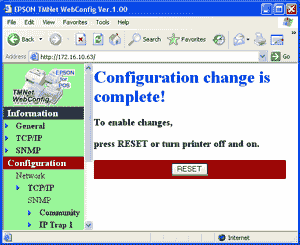
The 'Submit' button with write settings to the printer. The Ethernet adapter is reset when you press the 'Reset' button.


From  https://www.beaglehardware.com/


8/07/2019

HP universal printer driver: switch to color


Had patron with color printer & using HP universal printer driver, but only printed grayscale, no color, to fix:

  • Right click the start icon and select Run.
  • Type control and press OK.
  • Open Devices and Printers.
  • Right click the HP Universal Printing iocn and select Printer Properties.
  • Open the Device Settings tab.
  • Ensure the Device Type is set as Color rather than Auto Detect, confirm any changes by pressing OK.

HP solution forms

7/23/2019

mailto links in Chrome browser

Had patron where mailto links were doing nothing in Chrome, had set Windows to use Chrome as default mail program, but needed to do:


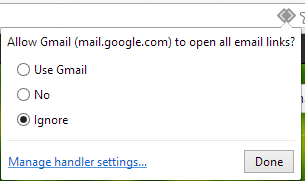
You can go to chrome://settings/handlers and make sure that which is the default handler. In your case it will be none. Now go to gmail.com. You should see something like this when you click on the button beside the bookmark button.
Set mailto in chrome
If you wish to open all email links through gmail then set "Use Gmail". Now when you click on mailto button, chrome will automatically opens in gmail.

7/21/2019

Combining Word documents

  1. Place the cursor where you want the second document to be inserted
  2. From the Insert tab,  Text group, click on the down arrow next to Object and choose Text from file.
  3. Select the file to be inserted
  4. Click on Insert

From  U of Sussex

7/12/2019

Cheap laptops

Had a student ask for recommendation for inexpensive laptop, the wirecutter recommends:
After researching hundreds of laptops and testing eight, we found that the Asus Chromebook Flip C302CA is the best laptop that costs less than $500. It has a bright screen, a comfortable keyboard, and a responsive trackpad. It’s faster than Windows laptops at the tasks most people use laptops for: browsing the Web (even with a ton of tabs open), basic word processing, and watching movies.


https://thewirecutter.com/reviews/best-laptop-under-500/

7/11/2019

Website shortcuts on taskbar

Want to create URL shortcuts on Windows 10 taskbar:


Step 1: Open the website you want to pin to your taskbar in Google Chrome.
Step 2: Click the three-dotted menu in the top right-hand corner.
Saving Link to Desktop on Chrome
Step 3: Click More Tools, followed by Create a shortcut.
Step 4: When the popup window appears, you can customize the name of the shortcut, and then choose Create. The shortcut should not automatically appear on your desktop.

Note for Macs: Chrome acts a little different on MacOS. Instead of using the Create a shortcut tool, you will need to instead choose Save page as…. Then, in the window that appears, make sure you are saving the link to your Desktop. This should add the shortcut to your desktop, no problem.

For other browsers:  https://www.digitaltrends.com/

7/03/2019

Buying a chromebook

Most Chrome OS programs require an Internet connection and will not work when the device isn't connected to Wi-Fi. If you don't take the necessary precautions before leaving a reliable Wi-Fi network—like making pertinent Google Docs available offline—your Chromebook will essentially become a useless brick when unconnected.  ... More https://arstechnica.com/gadgets/2019/01/guidemaster-how-to-buy-a-chromebook-plus-our-best-picks/

When it comes to upgrades, Chrome OS and Android couldn't be more different.

Since Chrome OS can't be customized by device-makers in the way that Android can, Google's able to control Chromebook updates completely on its own — and that means latest software can roll out to all current devices within days of its release, regardless of who made each laptop or where it was purchased.  ...more https://www.computerworld.com/article/3405893/buying-a-chromebook.html

Chromebook updates  https://support.google.com/chrome/a/answer/6220366?hl=en


Chromebook Reviews, from TheWirecutter.com   https://thewirecutter.com/reviews/best-chromebook/

6/25/2019

Removing all notes from Powerpoint file

Have a patron that wants to remove all notes from Powerpoint slides:

  1. Open a copy of your presentation in PowerPoint so that you don't loose your original version that includes the notes.
  2. Click on the File tab in the top left corner and then on Info.
  3. Click on the Check for Issues button and then on Inspect Document
  4. Make sure the Comments and Annotations and the Presentation Notes boxes are checked and click Inspect.
  5. If there are any comments, annotations or notes, clicking the Remove All buttons will remove them all.
Don't forget to save your presentation under a different name if you want to also keep copy containing your comments, annotations and notes.


https://articlebin.michaelmilette.com/powerpoint-2010-tip-removing-speakers-notes-comments-annotations/

6/19/2019

Responsive design and WordPress

Any time you see a WordPress web page that loads and navigates seamlessly (or as near to seamlessly as possible) across a range of different devices, know that all of that was made possible by good responsive web design. As more and more people utilize their mobile device(s) to access and surf the internet, having a website that is easy to navigate across operating systems and screen sizes will make or break your digital success.

If you want to make sure your WordPress site is accessible and user-friendly across devices, below are the dos and don’ts of responsive web design:

Wordpress design

6/04/2019

getting around paywalls via Chrome Incognito mode


Bypassing paywalls—and detecting a user’s methods for doing so—is a cat-and mouse game that has been going on between news publishers and readers for some time. While viewing a website in Incognito mode has been the tried-and-true method for getting around a site’s restrictions on how many free articles you can view at any given time, publishers are not without tricks of their own.

https://lifehacker.com/how-to-get-past-paywalls-in-chromes-incognito-mode-1835513589

5/02/2019

Photo editors: GIMP vs Paintnet

GIMP and Paint.NET are both free image editors, but the two are quite different, so it can be tricky to know which is best for you.

The world of photo editors is a funny one. For most people, choosing the right tool is something of a balancing act. Do you want to go for a free program, or one that costs money? Go for the second option, and you run the risk of making an expensive mistake. Do you choose something simple that gets the job done, or do you go for something powerful and professional? Make the wrong choice here and you could find that you're either limited by too basic a program, or overwhelmed by something that's far too complicated for your needs.

If you choose the free software route, you'll find that GIMP and Paint.NET are two names that crop up time and time again. Both programs are hugely popular, and with good reason, but which should you install?

https://www.techradar.com/news/gimp-vs-paintnet-which-is-the-best-free-photo-editor-for-you

4/29/2019

Removing background from images

Easy way to remove background from a photo, just upload to 
https://www.remove.bg/


If you have Microsoft Office 2016 installed, you have another easy method to remove the backgrounds from images. The process is identical for Word, Excel, and PowerPoint.

Procedure

To get started, insert the picture into a document. Now choose Picture Format > Remove Background (in case of Mac). The app will then try to figure out the background, and mark them in purple. If the image is simple, it’ll easily cut out the background. For more complex images, use the Mark Areas to Keep and Mark Areas to Remove button to fine-tune the selection.
The marker is not intuitive to use. It just lets you draw straight lines around the object you want to keep or get rid off. Once you’re done, click the Keep Changes button to save the image.

3/26/2019

Linux via USB

Want to have Linux OS ready to run off of USB drive, here are some choices:


1. Linux USB Desktop for Any PC: Puppy Linux


For some time, Puppy Linux has been seen as little more than a curiosity. Designed to be used on the most austere hardware, it could comfortably chug away on early Pentium machines without breaking a sweat. But it wasn’t that practical. Many installed Puppy Linux on their antique hardware to just to see if they could.
But Puppy Linux never went away. Updates and new versions are still regularly released. Sure, it’s still stripped down and meant for low-end or underpowered hardware. But you can now install Puppy Linux on a USB stick and get stuff done.
Puppy Linux isn’t a single Linux distribution. It consists of multiple versions based on different code but using the same tool and philosophy. One version is based on SlackWare, which is one of the most well-established Linux distributions.
People continue to use it as their day-to-day operating system. People understand it. Then there are multiple options based on Ubuntu, the most popular version of desktop Linux.

2. A More Modern Desktop Experience: elementary OS


Are you a newcomer to Linux who just wants something simple and attractive to keep in your pocket? Check out elementary OS.
elementary OS offers a cross between the popular GNOME desktop environment and what you get on a Mac. The resulting experience is so intuitive, you can pick it up on your own with a few clicks.
AppCenter provides apps built only for elementary OS along with other essentials, like the LibreOffice suite, the GIMP image editor, and the Audacity sound editor. This way you can hit the ground running even if you have no idea what software is available for Linux.
10 Elementary OS AppCenter Apps That'll Make You More Productive 10 Elementary OS AppCenter Apps That'll Make You More Productive Having an app store of its own has really brought Elementary OS to life with a great choice of apps. I use these AppCenter tools to improve my productivity -- perhaps you will too. Read More Since elementary OS shares a lot in common with Ubuntu, you can be confident you won’t have to deal with any hardware compatibility gremlins. Plus, it proves to be buttery-smooth, even on low-end hardware, like laptops and cheap Atom and Celeron-powered machines.
This is important when you’re also dealing with the inherent performance bottleneck that comes with booting your operating system from an USB drive.

3. Tool for Managing Your Hard Disk: GParted Live

Hard drives consist of chunks called partitions. Your computer’s hard drive might have just one partition for all your files and folders. Or it might have one partition for your programs and another for your documents. From time to time, you might need to resize these partitions or wipe them entirely.
GParted is a common Linux tool used to manage these partitions. Many distributions come with this pre-installed. But if your computer doesn’t boot, that does you no good. You need a copy you can load from a USB stick.
It’s called Gparted Live, a USB Linux distro for your flash drive. Loading up this little program will let you reshape your hard drive as you require. Be careful though, as one mistake could potentially render your hard drive unbootable.

4. A Way to Remove Viruses: BitDefender Rescue CD

When malware strikes, it can often be game over. Your machine will run slowly, or perhaps not at all. Your files and folders will be held to ransom. Everything you do on your computer could be monitored. Worse, many viruses and Trojans are designed to actively fight removal.
They’ll prevent anti-malware programs from updating their definitions, or even running. But you have alternatives. By booting into a special Linux distribution, you can scan your system for problems, and resolve them.
One big name in computer security is Romania-based BitDefender, who boast an array of premium and free antivirus and antimalware solutions. In terms of sheer effectiveness, BitDefender’s products tend to rank quite highly. They happen to offer a Linux live CD.
BitDefender has provided helpful instructions, where they explain how you can use the Windows tool Stickifier to create one.

5. A Portable Gaming Setup: Ubuntu GamePack


Linux USB sticks aren’t all about getting work done and saving PCs. Sometimes you just want to have fun. With Ubuntu GamePack, your flash drive is like a portable gaming PC. True, you’re limited by the specs of the machine you’re borrowing, but as long as you stick to titles with modest requirements, you shouldn’t have many problems.
Ubuntu GamePack comes with software that makes gaming on Linux easier. This includes Steam, which lets you download your existing library of Linux titles. Alternatively, you can use PlayOnLinux or Wine to fire up supported Windows titles.
If you’re at a friend’s house for a LAN party, but you don’t have your own PC, Ubuntu GamePack can serve in a pinch. You can also keep copies around on different flash drives as an easy way to ensure everyone is using the same game version with the same configuration.


https://www.makeuseof.com/tag/5-best-linux-distros-installation-usb-stick/

3/22/2019

Word: recovering lost files

Had a patron who closed a Word document without saving, but Autorecover was on:


For Word 2013 Users:
  1. On the File menu, click Open, and then click Recent Documents.
  2. Scroll to the end of all recent documents, and then click Recover Unsaved Documents.
  3. If you find the Word document that you are looking for, double-click it to open it.
  4. Save it immediately.

 https://www.easeus.com/

3/15/2019

Photo editor: Polarr

Polarr has one or two shortcomings, but it’s still a program with a lot of depth. Who would use it? Anyone looking for the following:
  • A free or cheap alternative to Photoshop
  • Includes built-in special effects and retouching tools
  • Auto image enhancer often a good quick fix for eye-catching web pictures
  • Intuitive to use, especially if you are familiar with sliders in other programs
  • Ideal for editing images for web or online labs
  • Backed up by an extensive library of online tutorials at Polarr Wiki
  • Option for more complex edits with the Pro version (subscription based, but low cost).
Polarr web based photo editor

https://digital-photography-school.com/

3/13/2019

OCR in MS Office


OneNote supports Optical Character Recognition (OCR), a tool that lets you copy text from a picture or file printout and paste it in your notes so you can make changes to the words. It’s a great way to do things like copy info from a business card you’ve scanned into OneNote. After you extract the text, you can paste it somewhere else in OneNote or in another program, like Outlook or Word.

Extract text from a single picture

  1. Right-click the picture, and click Copy Text from Picture.
    Note: Depending on the complexity, legibility, and the amount of text shown in the picture you’ve inserted, this command may not be immediately available on the menu that appears when you right-click the picture. If OneNote is still reading and converting the text in the image, wait a few moments and then try again.
  2. Click where you’d like to paste the copied text, and then press Ctrl+V.

Extract text from the images of a multiple-page file printout

  1. Right-click any of the images, and then do one of the following:
    • Click Copy Text from this Page of the Printout to copy text from only the currently selected image (page).
    • Click Copy Text from All the Pages of the Printout to copy text from all the images (pages).
  2. Click where you’d like to paste the copied text, and then press Ctrl+V.


From  office.com

2/26/2019

Phone chargers

This 40-watt four-port charger is just as wide as Apple’s iPad charger but larger in its other dimensions because of its extra ports. It plugs directly into an outlet instead of using a detachable power cable, but thanks to the orientation of its prongs, it covers only a single outlet instead of crowding your power strip or wall plate. Anker’s PowerIQ technology identifies what kind of device is plugged into each port and delivers the proper amperage without your having to figure out the “right” USB port for each device.

https://thewirecutter.com/reviews/best-multiport-usb-wall-charger/


https://www.nytimes.com/2018/10/03/smarter-living/how-to-charge-phone-faster.html