A fun site for free ringtones: https://www.zedge.net/ringtones-and-wallpapers
Showing posts with label freeware. Show all posts
Showing posts with label freeware. Show all posts
5/12/2022
Ringtones and Wallpaper


3/20/2022
Free tax filing software
I recommend https://www.freetaxusa.com/
I have used it several years for my Federal income tax and it worked perfectly. This year I had a more complicated filing (K-1 schedule, property loss) and it was able to handle everything. Even with free version got prompt replies to my 2 questions.
Here is a review:
https://www.businessinsider.com/personal-finance/freetaxusa-review
12/12/2021
Free version of MS Office
Office Online is entirely cloud-based and works on most browsers. As long as you have the internet, you have access to familiar MS Office tools like Word, Excel, and PowerPoint, as well as Sway, OneNote, Outlook, Calendar, OneDrive, Forms, People, and Skype. Simply create an account and log in from anywhere to collaborate with anyone.
https://www.microsoft.com/en-us/microsoft-365/free-office-online-for-the-web
8/21/2021
Google Bookmarks alternatives
Google is shutting down the Google Bookmarks service from September 30. Don't worry, you can still export your bookmarks to these free bookmark apps that are arguably better.
The internet giant is getting a reputation for discontinuing beloved Google products, so maybe this time you should look for a non-Google app to save your bookmarks. There are plenty of alternatives to Google Bookmarks too, from classic bookmark managers to those that focus on organizing your links and remembering why you saved them in the first place.
4/07/2021
Free online courses: Udemy
How do you pick the best free courses on Udemy when there are more than 155,000 online courses to choose from? Well, here are a few steps if you are only interested in the free Udemy courses and nothing else:
- Decide on your topic.
- Use the Udemy menu to drill down to the Categories.
- Search for course with the right keyword in the Search Bar.
- Click the All Filters button on the search result page.
- Apply the Free filter.
From:
2/26/2021
Microsoft Power Automate Desktop freeware
Windows 10 has new tool that allows you to record macros and do repetitive tasks automatically:
Microsoft today announced that it is making Power Automate Desktop, its enterprise-level tool for creating automated desktop-centric workflows, available to all Windows 10 users for free. Power Automate Desktop is what Microsoft calls its “attended Robotic Process Automation” solution, but you can think of it as a macro recorder on steroids. It comes with 370 prebuilt actions that help you build flows across different applications, but its real power is in letting you build your own scripts to automate repetitive and time-consuming tasks.
1/17/2021
Add/remove audio from video clip
Using the open source video editor Openshot: (Windows)
How to Remove the Audio From a Video
If you want to mute a video or you want to use your video’s audio as an independent file, you can detach the audio from your video in OpenShot:
- Launch OpenShot, click File > Import Files at the top and add your video to the app.
- Right-click your video and select Add to Timeline.
- Hit OK on the following screen as you don’t need to configure any options.
- Right-click your video on the timeline and select Separate Audio > Single Clip (all channels).
- If you want to mute your video, click the audio file on the timeline and hit the Delete key.
- Select File > Export Project > Export Video to save your video without the audio.
How to Add Background Music to a Video
You can add pretty much any music track available on your computer to your video file.
- Click File > Import Files to add both your audio and video files to the app.
- Right-click your video and select Add to Timeline.
- Select Track 5 from the Track dropdown menu and click OK.
- Right-click your music file and select Add to Timeline.
- This time around, choose Track 4 from the Track menu and click OK.
- Click File > Export Project > Export Video to save your musical video.
The idea here is that your music should appear on a different track than your video track.
https://www.makeuseof.com/how-to-edit-videos-on-windows-10/
7/20/2020
monitoring computer temperatures
Looking for apps and software that check PC temps and fan speeds:
Heat can severely impair the performance of computer components, with hard drives being the most susceptible. If your hard drive seems like it’s dying, first check the internal temperature. Fortunately, checking temperatures is as easy as using one of these free heat monitor apps.
1. CrystalDiskInfo
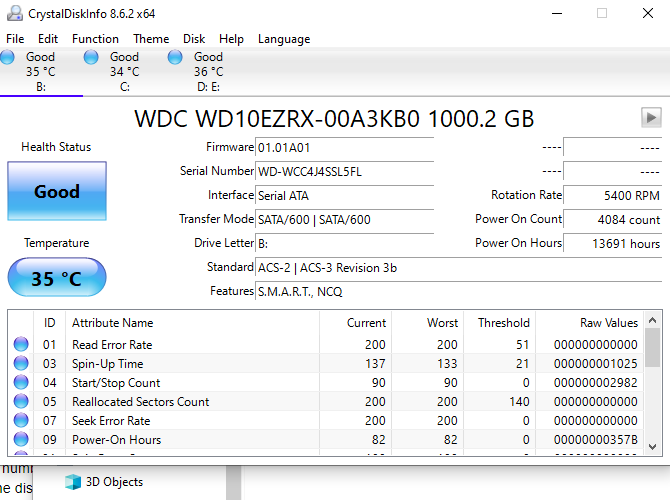
If
your chief concern is the temperature of a hard drive, look no further
than CrystalDiskInfo. This is a dedicated utility for managing the
health of HDDs and SSDs and is so useful that we consider it a must-have diagnostic tool for Windows users.
13 Windows Diagnostics Tools to Check Your PC's Health
Use these computer diagnostic tools to run a PC health check and fix issues. Some support Windows 10 diagnostics, specifically.
Read More
With its clear and easy-to-use interface, you’ll have no trouble navigating all the information it has for you. And with all its advanced features, it’s practical enough for power users, not just newbies.
- Monitors temperatures for all system HDDs and SSDs.
- Health Status estimates the overall health of each drive.
- In-depth diagnostics for all read/write drive values.
- In-depth graphs for HDD and SSD values over time.
- Available in 32-bit and 64-bit, installed or portable.
2. Core Temp
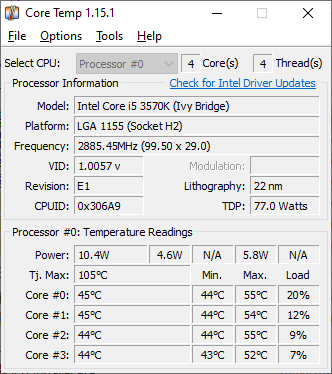
Core Temp is a fast, accurate, and flexible laptop temperature monitor. However, a word of warning: the installer comes with bundleware! You can avoid it by unchecking it, but you must pay attention during installation. Otherwise, there are no ads.
Notable features include:
- System tray icon with real-time information.
- Pick which sensor to display in the system tray icon.
- Overheat protection notifies when the temperature is too hot.
- Tracks system hardware details for reference.
- Checks for BIOS and Driver updates.
3. HWiNFO
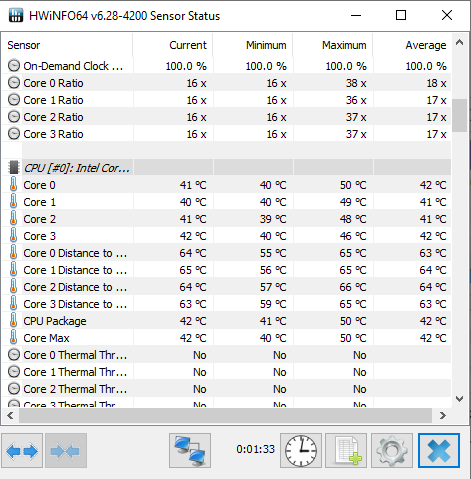
HWiNFO is a lightweight diagnostic tool for gleaming in-depth hardware information and monitoring systems in real-time. It’s a lot easier to use than it sounds. Plus, it’s actively updated—a new version about once every 1-2 months, which is great for cutting-edge systems.
Advertisement
Notable features include:- System tray icon with real-time information.
- Reports for CPU, RAM, HDDs, SSDs, battery, and more.
- Allows remote monitoring of sensor data.
- Available in 32-bit and 64-bit, installed or portable.
4. HWMonitor
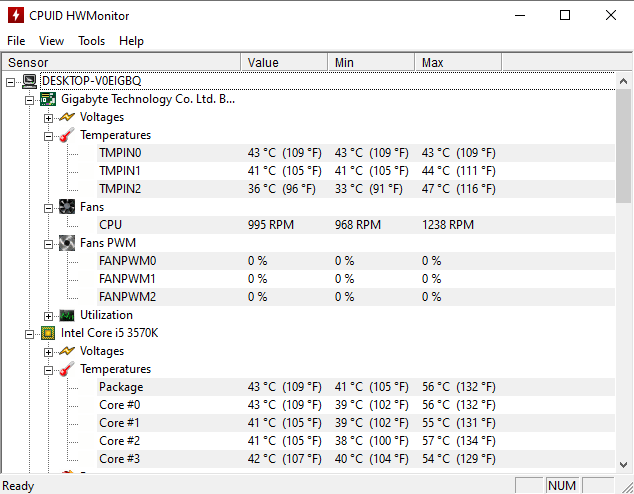
HWMonitor is one of the most trusted system monitoring apps currently available. The free version is more than enough for keeping tabs on temperature, but there is a Pro version with advanced features (e.g., graph generation) for €20.
Notable features include:
- Read any sensor with voltages, temperatures, or fans.
- Save monitoring data to a log for troubleshooting.
- Checks for BIOS and Driver updates.
- Available in 32-bit and 64-bit, installed or portable.
5. Macs Fan Control
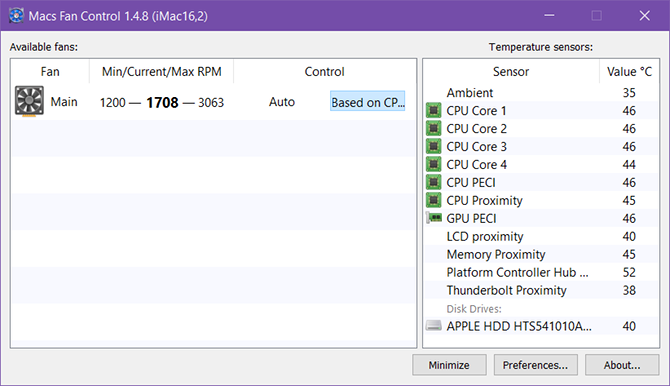
If you’re running Windows on a Mac, things get slightly tricky because the hardware in a Mac has a few proprietary quirks.
The good news is, there’s a free app designed specifically for you, and it’s called Macs Fan Control. It’s easy to use and highly recommended.
Notable features include:
- System tray icon with real-time temperature.
- Pick which sensor to display in the system tray icon.
- Set custom min/max fan RPMs based on sensor values.
- Supports sensors for third-party HDDs and SSDs.
- Supports every model: iMac, MacBook, Mac Mini, Mac Pro.
6. SpeedFan
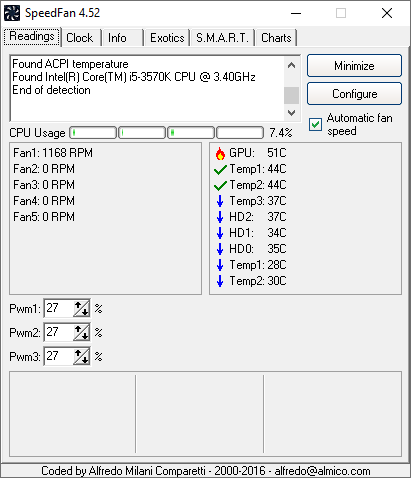
In
addition to potential hardware damage, high system temperatures are
problematic because they cause your laptop’s fans to work overtime. A
hard-working fan wears out faster, but more importantly, fast-spinning
fans are loud. Much louder than you’d anticipate. Of the many ways to silence noisy laptop fans, the easiest is to use SpeedFan to control fan revolutions per minute (RPM) manually.
6 Things You Can Do to Silence a Noisy Laptop Fan
Wondering why your laptop fan is so loud? Here are several ways to get some peace and make your laptop fan quieter.
Read More
What’s nice is that SpeedFan also has features for monitoring temperature, so it’s like a 2-in-1 app— just not as advanced as the others above.
Notable features include:
- System tray icon with real-time information.
- Read any sensor with voltages, temperatures, or fans.
- Set custom min/max fan RPMs based on sensor values.
- Adjust and fix incorrect temperature readings on sensors.
- Chart values over time for troubleshooting.
7. Open Hardware Monitor
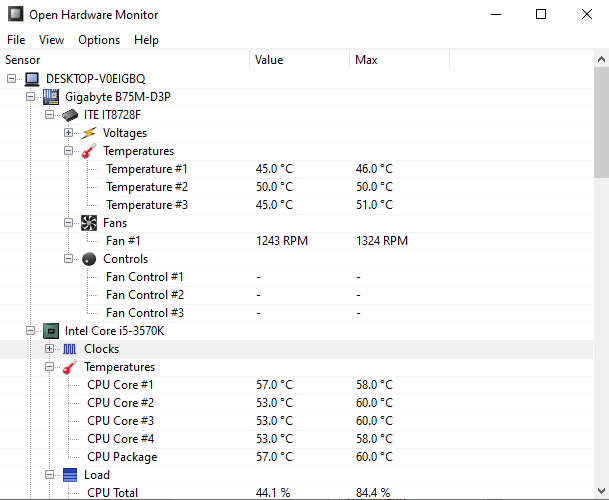
Open Hardware Monitor is similar to HWiNFO and HWMonitor, except that it’s open-source. In fact, Open Hardware Monitor was considered a dead project, as it had not received an update since 2016 (which stopped Open Hardware Monitor working with some of the latest hardware).
However, in early 2020, Open Hardware Monitor updates began rolling out, updating the laptop temperature monitoring tool for the latest CPUs, GPUs, and other hardware.
Notable features include:
- Read most sensors with voltages, temperatures, or fans.
- Save sensor data to a log for troubleshooting.
- Display data on a remote web server.
- Portable, so no installation needed.
8. NZXT CAM
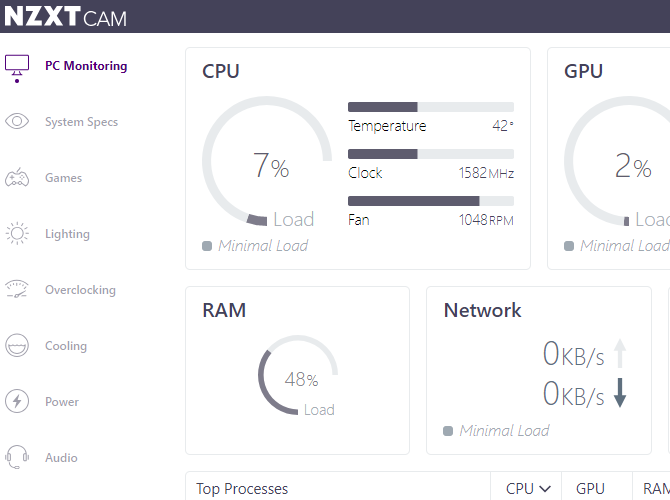
NZXT CAM is a temperature and hardware monitoring tool with a slick user interface and numerous options.
You might note the name of the developer, NZXT. NZXT manufactures a range of PC hardware, and as such, NZXT CAM works very well with their hardware. For instance, you can use NZXT CAM to control case lights, fan speeds, power supply voltages, and more, where supported.
Notable features include:
- Read a wide range of temperature, fan, and speed sensors.
- Control NZXT compatible hardware.
- Customizable user interface.
- Displays detailed system specifications.
- Optional gaming overlay.
Tips for Reducing Laptop Temperatures
Make sure you check temperatures when your laptop is idle (with no apps running) and under load (with performance-heavy apps running). A high idle temperature can be just as degrading as a high spike under load. Learn more about how hot is too hot for a PC.If it is running too hot, don’t worry. You have options.
We have plenty of tips on fixing an overheating laptop and several more tips on keeping your PC cool. The most effective steps are to clean out internal dust, always use on a hard flat surface, and supplement with a laptop cooling pad.
makeuseof.com/tag/3-laptop-computer-temperature-monitor-apps-save-hard-drive/
4/09/2020
Editing PDFs
For freeware that edits PDFs:
1. Smallpdf
A handy cloud-based free PDF editor
Operating system: Windows, macOS, Linux (in browser)
Powerful range of tools
Cloud-based
PDF to Word converter
Limited free trial
With Smallpdf’s Edit PDF tool, you get a simple user interface that allows you to add text and image content to your PDF files. This platform also offers simple e-signing, and the ability to add comments and highlights to information already stored in your PDFs.
The Smallpdf system actually contains lots of other PDF modification tools too. Along with the editor function, there’s a variety of options to convert PDFs into easier-to-edit formats such as Word and Powerpoint files, and you can save space by merging individual PDF documents into a single file.
But the best thing about Smallpdf is that it’s a cloud-based platform. In other words, you can access it from any supported device simply by visiting the Smallpdf website and dragging-and-dropping a PDF into your browser.
Don’t be thrown off by the prompts to begin a 'free trial' – you only have to do that if you want to install the Smallpdf Desktop program for offline editing.
Read our full SmallPDF review


2. PDF-XChange Editor
Another superb tool for editing text in PDFs, with built-in OCR
Operating system: Windows
Optical character recognition
Text editing
Splits and extracts pages
Watermarks documents
PDF-XChange Editor is a free PDF editing program for Windows computers developed by Tracker Software. The interface is a little more complex than that of the Smallpdf editing suite but gives you easy access to plenty of helpful features such as a stamp option for marking documents as 'Expired' or 'Approved'.
But for most users, the main reason to use PDF-XChange Editor is the fact that it comes with inbuilt Optical Character Recognition (OCR). This means that if your original PDF document is a photocopy, PDF-XChange will still recognize the text and allow you to edit it. Also, PDF-XChange Editor lets you reformat text, and even convert it into fonts that aren’t already loaded on your computer.
And like Smallpdf, you can use this platform to merge or split individual PDF files. The only serious downside of this powerful editor is that, if you haven’t signed up to the Pro version, a small 'Created with PDF-XChange Editor' watermark will be added at the bottom of any PDF files that you export.
Read our full PDF-XChange Editor review

3. Formswift
A completely free PDF editor for your web browser
Operating system: Windows, macOS, Linux (in browser)
Scans documents from phones
Edits images and text in PDFs
Simple cloud-based system
Can't split/merge documents
FormSwift is an in-browser PDF editor that you can start using in just a couple of seconds. Unlike PDF-XChange Editor and Smallpdf, the FormSwift platform is totally free. That means there’s no need to start a free trial to use it. There aren’t even any annoying 'upgrade now' prompts to ignore.
With support for image addition, text editing, e-signatures, and checkmarks, FormSwift has everything you need to perform basic PDF edits. After you’ve finished your edits, you can print directly from the FormSwift interface or save your file as a Word or PDF file.
Plus, if you need to import a paper document for editing, all you need to do is visit the FormSwift Snap URL on your phone. Once you’ve given it permission to, the platform will use your phone’s camera to import the file.
Full FormSwift review coming soon

4. PDFescape
Ideal for editing smaller PDF files
Operating system: Windows, macOS, Linux (in browser)
No account necessary
Easy document merging
10MB file size limit
Desktop editor is paid-only
With PDFescape, you can either edit online or through a desktop application. The desktop application is the more powerful of the two as it supports edits to pre-existing PDF content and allows you to scan paper documents. However, only the online version of PDFescape is free to use.
All the same, you get plenty of useful PDF editing options with PDFescape online such as the ability to make freehand notes and a tool for adding clickable URL links to your documents. You’ll also find that it’s pleasingly easy to add, rotate, and annotate pages with the in-browser version of PDFescape.
The only major flaw of this free PDF editor is that you can’t upload documents that are larger than 10MB. A regular A4-size PDF page only takes up about 100KB of data though, so this shouldn’t cause a problem unless you’re editing a book-length document.
Read our full PDFescape review

5. Sejda
PDF editing with a slick interface in the cloud
Operating system: Windows, macOS, Linux (in browser)
No account necessary
Simple interface
File size limits
Premium is expensive
PDF files are a good way to store professional or financial information, which means that their contents are often sensitive. Sejda is a free online PDF editor that you can trust with important documents because all uploaded files are wiped from its servers after five hours.
Aside from security, Sejda is a good choice if you are after a free PDF editor with a user-friendly interface. Sejda’s single menu bar makes it easy to find all the editing options necessary for adding text, links, images, and signatures to PDF documents.
When you’re done editing a document in Sejda, you just need to click the 'Apply Changes' button and proceed to save the finished product in your Google Drive account, Dropbox system, or locally.
Sejda does come with some limits, but they aren’t restrictive enough to cause problems for casual users. You can only perform three tasks and upload 50MB, or 200 pages of information to the Sejda platform every hour.
Read our full Sejda review
Subscribe to:
Posts (Atom)