Navigation

2/20/2020

Gmail Search syntax


Want to search google inbox for messages for 2 different email addresses combined with OR:


If you want to pull a list of emails from multiple different potential senders, the easiest way to do it is using Gmail filter syntax: the “OR” operator or { } brackets. For example, if you wanted to view both emails from sender1@gmail.com and sender2@gmail.com, you could use “{from: sender1 from: sender2}” or “from: sender1 OR from: sender2”.


By multiple senders/recipients


From  emailanalytics

2/15/2020

Youtube audio to mp3

Had a patron who wanted to capture Youtube audio to MP3 file:


GenYouTube converts YouTube videos to MP3 and other formats for audio and video. Copy and paste the link to a YouTube video in the search field. GenYouTube starts playing the video. You then select the format for the audio file, such as MP3 or M4A. Download the file to play it on your device.
GenYouTube has other tricks up its sleeve. If you're watching a video on YouTube, simply add the word gen to the video link, as in https://www.genyoutube.com/watch?v=qZXdZwsx64I, and you're swept away to the GenYouTube site to download the video. You can also tap into the service by installing browser extensions for Firefox, Chrome, and Safari.

From PCmag.com


4K Video Downloader

Save audio from YouTube videos in MP3, M4A or OGG format
Operating system: Windows


No ads or bundled software
Can download playlists
Only available for Windows
Long playlists require license
It might not be the most stylish software around, but like 4K YouTube to MP3 above, 4K Video Downloader is brilliant.
It works in a similar way, too, but because this app is chiefly for downloading whole videos, there are a couple of extra steps involved. Copy the URL of a video from your web browser (it supports YouTube, Vimeo, Facebook, Flickr and DailyMotion) and click 'Paste URL'. Select 'Extract audio' and pick MP3, OGG or M4A, then click 'Extract' and the audio will be converted and saved to the destination of your choice. Done.
The free version of 4K Video Downloader lets you download up to 24 videos in a playlists, which is particularly useful for grabbing several songs by a particular artist. You can download and convert longer playlists to MP3 format if you buy a license key, but the software's free features are very impressive.
Read our full review: 4K Video Downloader

From techradar.com

2/12/2020

Apple Yosemite OS

Have a patron with older Mac laptop, need to reinstall Yosemite OS,  can not do it from Apple store (only current OS)  https://go.redirectingat.com/

For older Apple OS:


Before you can install an older version of macOS or Mac OS X you will need to get hold of the installer for the version of macOS you want to install. Unfortunately getting hold of these files may not be as easy as you might be hoping.

Depending on the version of macOS you are running, you should be able to find older versions of Mac OS X (and macOS) in the Mac App Store. However, these may not be available to you if you are running a more receent version of the Mac operating system.
Prior to macOS Mojave's arrival in 2018 the installers for the older macOS versions could be found via the Purchased tab, that's assuming you 'purchased' them (not that anyone has had to actually pay for a Mac OS X update for years).
Old versions of mac os x in the app store
However, when Apple launched Mojave the Mac App Store changed, and these installers are no longer downloadable from the store - unless you are using an old version of macOS/macOS X.
However, it is possible and we will walk you through the various methods
ADVERTISEMENT
of downloading old Mac OS X versions from the Mac App Store below. We will show you a way to get the following Mac OS X installers:
  • macOS Catalina
  • macOS Mojave
  • macOS High Sierra
  • macOS Sierra
  • OS X El Capitan download
  • OS X Yosemite download
  • OS X Mavericks download
  • OS X Mountain Lion download
  • OS X Lion download
You won't be able to get the Mac OS X Snow Leopard download this way - but we’ll look at that later. In fact, we tell you how to get copies of Leopard, Lion and Mountain Lion too!

We have a full list of which Macs run which versions of Mac OS X and macOS here.


How to download the Mojave installer

Despite the fact that Mojave updates come via Software Update, you can still download the installer from the Mac App Store, even if you are running Catalina
You can get macOS Mojave via this link.
  1. Click this link - this will open the Mac App Store on the Mojave page.
  2. Click on Get.
  3. Software Update will open with the words "Finding Update". Eventually a message "Are you sure you want to download macOS Mojave 10.14.6" will appear. It might look like a .6 update, or later, but you'll see from the size of the download (just over 6GB) that this is the complete installer for Mojave.
  4. Once the installer has downloaded do not click Install. If you install it the installer will automatically be deleted.
  5. You should be able to find the Install macOS Mojave app in your Applications folder, you'll need this for the next steps, which we outline here: How to downgrade macOS, install an older verison on your Mac.
Download Mojave

How to download High Sierra installer

Download High Sierra here.
Back when we last updated this article it was also possible to access the High Sierra installer via this link to the Mac App Store. However, since Catalina arrived it is no longer possible to doanload the installer if you are running Catalina.
In that case you need to find a Mac that's running an older version of the macOS, log into the Mac App Store with your password and download High Sierra's installer. Or ask a friend to download a copy of the installer from the Mac App Store for you.
As above, once the installer has downloaded don't install it! If you do then the installer will be deleted. You'll find the installer in your Applications folder.
Beware of downloading the installer from a file sharing site as you can't be sure that it's safe. It's safest to say: just don't do that.
It may be possible to download the installer via Terminal, however we were unable to get that method to work.
You will also find updates to old version of macOS on Apple’s website here, however these are just point updates, rather than the full version, so it won't be much help if you are trying to get the full download of High Sierra, for example.

How to download Sierra installer

In 2017, when Apple introduced MacOS High Sierra, the company removed Sierra from the Purchased list, which made it more difficult to revert to that earlier version, but it was still possible to download the Sierra installer via this link that Apple provided.
The link still takes you to a page for macOS Sierra, but if you are running Mojave you will see an “Update not found” error message if you try to download it. We have been able to download the installer on older versions of MacOS though. So as above, find a friend who isn't running Mojave.

How to download Mavericks, El Capitan, Yosemite, Mountain Lion and Lion

On a computer running OS X Yosemite it is possible to see versions of Mac OS X in the Mac App Store. Yosemite, Mavericks and Mountain Lion can all be seen here.
If you can find a Mac running High Sierra or older, log onto the Mac App Store and download the Installer there, as we describe below.
It's worth noting that you'll only see old versions of Mac OS X that you've downloaded under Purchased - if you never downloaded it (or if it was never on the Mac App Store), that version will not be in your Purchased section. Another reason why the version of Mac OS X might be missing is if your machine shipped with that version installed. We'll look at that scenario later.
Here is how to get an older version of Mac OS X from the Mac App Store (this only works if you've downloaded it in the past and it won't work if you have already installed Mojave or Catalina):
  1. Open the Mac App Store (choose Store > Sign In if you need to log in).
  2. Click Purchased.
  3. Scroll down to find the copy of OS X or macOS you want.
  4. Click Install
Clicking Install won't actually install the software, but it will download the installer application to your Applications folder.
You won't be able to simply install this older version of the operating system directly onto a Mac running a newer version of OS X or macOS. We will explain how it can be installed on a Mac - including one currently running an earlier operating system here: How to install old Mac OS X versions.

Can't find Mac OS X in Purchased?

If you know you have previously downloaded the version of macOS you are after, but you aren't seeing it in the Purchased section, there are a few things to try:
  1. Log out of the App Store then log in again.
  2. If it's a possibility that you downloaded it while logged in to a different Apple ID (perhaps a work-related one), log in using that ID.
  3. Alternatively, find someone who has downloaded that version of the Mac operating system and ask them to download the installation file for you.
If you never downloaded the version of Mac OS X then jump to step 3 and find a friendly person who did. Ask them to download the Mac OS X installer for you.
Luckily the copy of OS X isn't locked to their account so it will install on any Mac.
The one thing you really mustn't do is go to a torrent site and download a copy of the OS X you want. Just because Apple gives away its software for free, don't think it's fine to just pick up a copy. Pirated copies of Apple software could have been adjusted to allow hackers access to the software and your Mac.

How to get OS X Snow Leopard 

It is possible that the version of Mac OS X you are after was never available from the Mac App Store. This is the case with Snow Leopard - the first version of Mac OS X to come with the Mac App Store.
That way of downloading Mac OS X updates and new apps was introduced with Snow Leopard and means that anyone with a Mac running Mac OS X 10.5 Leopard or earlier can’t actually access the Mac App Store to download anything.
The good news is that Apple still sells a boxed version of Mac OS X 10.6 Snow Leopard here for £19.99 (at its launch in 2009 it cost £25). In the case of Snow Leopard you will be sent a physical box containing an optical disc - so you will need a CD/DVD drive to install it (which you will probably have if the Mac is that old).


How to get OS X Lion, Mountain Lion 

It’s not just Snow Leopard that you can purchase from Apple's website - you can purchase copies of Lion and Mountain Lion from Apple.
If it’s Mac OS X 10.7 Lion that you are after, it’s available for £19.99 here US or here UK. Apple will send you a download code to use on the Mac App Store, so you will need to be running Snow Leopard to install it.
If it’s OS X 10.8 Mountain Lion that you need you can buy it for £19.99 here US or here UK As with Lion, Apple will send you a download code to use on the Mac App Store, so you will need to be running Snow Leopard to install it.


How to get OS X Leopard or earlier

If the old version of the OS you are after predates Snow Leopard and you have a developer account you might be able to get it from developer.apple.com/downloads. If you search within the OS X category you should see downloads for all versions of OS X, at least from version 10.3 to 10.6.
You may be able to access the Developer section of the website, but you will only be able to access certain software downloads if your Apple ID is associated with a paid Apple Developer Program.
If you haven't signed up as a Apple Developer, find out what that entails here. It costs £79 ($99) a year to join the Apple Developer Program and you have to sign a non disclosure agreement.
You could also try looking on Amazon or eBay to see if anyone is selling old versions of the Mac operating system. For example there’s a Full Install of OS X Lion available for £8.50 on Amazon here.
If it's Tiger you are after, then it will cost a little more. There was a copy of Tiger on Amazon for £89.99 but it's currently unavailable.


From Mac World

2/04/2020

Advanced Excel tips

Had user who need to freeze top row of Excel sheet:


Freeze Versus Lock in Excel

As we briefly mentioned above, if you want a row or column to be visible no matter where you scroll in your Excel sheet, this requires the freeze feature.
You would use the lock feature to prevent changes to the content of a cell. As examples, you might lock a cell or range that contains formulas, lists, or similar types of data that you don’t want changed.
So if someone asks you how to lock a row in Excel, they likely mean to ask how to freeze a row in Excel.

How to Freeze the First Column or Top Row in Excel

More spreadsheets than not contain column or row headers. So freezing a column or row containing headers make is much easier to manage your data, especially when you have a lot of it.
With this method, you’re going to have to choose to freeze either the first column or first row. Unfortunately, you can’t do both.
  1. Open your Excel spreadsheet and go to the View tab.
  2. Click the Freeze Panes button.
  3. To freeze the first column, click Freeze First Column in the dropdown menu. To freeze the top row, click Freeze Top Row.
Excel Freeze First Column or Top Row
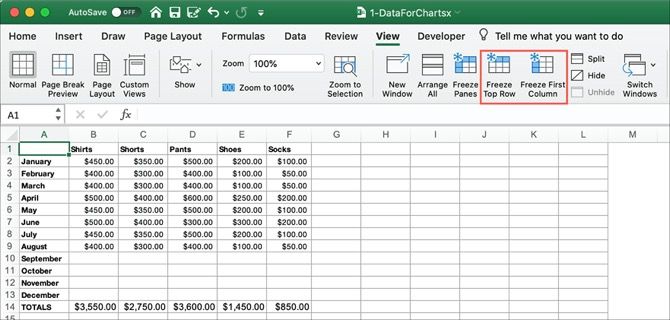
In Excel on Mac, you have separate buttons on the View tab for each option. So just click Freeze First Column or Freeze Top Row.
Excel Freeze First Column or Top Row on Mac

How to Freeze Columns and Rows in Excel

You may want to freeze more than just the first column or row in Excel. For instance, maybe you want to freeze the first three columns or rows.
  1. Open your Excel spreadsheet and go to the View tab.
  2. Select the last column or row in the group you want to freeze. For example, if you want to freeze columns A through C, select column D. Or if you want to freeze rows 1 through 4, select row 5.
  3. Click the Freeze Panes button and then the Freeze Panes option in the dropdown menu.
Excel Freeze Column


In Excel on Mac, this is also its own button on the View tab. So select the column or row and click Freeze Panes.
Excel Freeze Column Freeze Panes on Mac

How to Freeze Panes in Excel

If you would prefer to freeze a combination of rows and columns, referred to as a pane, it’s possible but slightly trickier.
  1. Open your Excel spreadsheet and go to the View tab.
  2. Select the cell directly below the row you want to freeze and the cell to the right of the column you want to freeze. For example, if you want to freeze columns A through C and rows 1 to 4, you would select cell D5.
  3. Click the Freeze Panes button and again, click the Freeze Panes option in the dropdown menu.
Excel Freeze Panes

How to Unfreeze Columns, Rows, or Panes in Excel

It’s just as simple to unfreeze columns, rows, and panes in Excel as it is to freeze them.
  1. Open your Excel spreadsheet and go to the View tab.
  2. Click the Freeze Panes button.
  3. Select Unfreeze Panes in the dropdown menu.
Excel Unfreeze Panes


In Excel on Mac, as you may have already guessed, this too is its own button. Head to the View tab and click Unfreeze Panes.

Excel Unfreeze Panes on Mac


From https://www.makeuseof.com/

1/14/2020

Resume creation/apps

Had a patron who needed resume help:


1. Applyya (Web): Free Resume Builder Without Watermarks

Applyya is a simple free resume building app

A lot of the free online resume builders have a catch. You can download a resume with a watermark for free, but you’ll have to pay a small fee to remove that watermark. Applyya has no such strings attached, and you can make a good-looking CV with its guide.
Start the editor and you’ll see fields that you have to fill, like your name, position, personal details, previous experience, educational qualifications, and skills. Applyya also has a field for a profile, where you add a picture and describe your current responsibilities and skills, or your overall goals. It’s a nice little intro for the recruiter.
You can add or delete any section, choose a base color for the resume, and set custom fonts and font sizes too. Applyya gives you three templates to choose from, all of which look modern and professional. Preview the file while you’re editing it, and once you’re done, download the resume as a PDF. It’s as simple as it should be.


2. Resume Builder (Web): Step-by-step Resume with LinkedIn Import

Resume Builder is a free CV app with LinkedIn import
Resume Builder is a great tool for those who don’t have much experience with writing or formatting a resume. It offers four free templates (minimal, elegant, modern, timeline) for different types of jobs, and guides you through the process of setting up your CV.
Importantly, Resume Builder is among the few free apps in which you can import details from your LinkedIn profile to fill up a majority of your resume. Then you can edit the template as you see fit to add or delete certain sections.
For each section, the app has you enter a few details in boxes and also offers sample text to show you what you should write in the major descriptions. If you haven’t written a CV before this, just do your best to reword the sample text with your own accomplishments.
You don’t need to sign up to use the service, and you can download the resume as a PDF for free. You can also change themes at any time, so try all four templates.


3. Hiration (Web): CV Templates for Different Types of Jobs

Hiration has free resume templates for every different type of job

When you’re writing a CV for a type of job, it helps to see how other successful people in that industry have composed their resumes. Hiration has a large database of example CVs, along with templates to put them in.
There are only a couple of free designs though, and four free pre-composed resumes for marketing associate, sales head, supply chain manager, and middle school teacher. The others are Premium templates that require a fee, but you can still see their content for free. You can even edit or copy-paste it.
If you don’t want to pay, you can look at this ideal CV and start composing your own resume in Hiration’s free resume builder. Manually add the fields and fill them in with your own details to create a brand new resume, and then download the PDF file.


4. EnhanCV’s AI Resume Generator (Web): Artificial Intelligence for CVs

Can AI build a resume? Try it with EnhanCV's AI Resume Generator

EnhanCV is among the best resume-building apps and sites on the internet. The developers have now unleashed an AI helper to generate a sample CV for you, depending upon which job you are going for.
It’s a long list of varied job roles too, including accounting, bartender, cashier, maintenance, mechanic, teacher, sales manager, engineering, and many more. Add your name, select the industry, and the AI will create a new resume every time. You can then use it as a template to replace it with your own accomplishments.
I would recommend generating these AI-crafted resumes multiple times and not going with the first one itself. In fact, open it in different tabs and generate them a few minutes apart, with different names. You’ll see a nice mix of what matters in the CV for your industry, as well as examples of how to word your experiences well.
EnhanCV is one of those tools that adds a footnote watermark, and you’ll have to pay to remove it. But this AI resume generator might be the boost your CV needs to land a job, and thus make it worthwhile.


5. CV Bot (Web): Fill a CV by Talking to a ChatBot

Chat with CV Bot to build your CV
If you’re looking to build a CV on a smartphone, I’d suggest trying CV Bot. It might seem a little strange to compose your resume by talking to a chatbot, but it feels surprisingly natural when you do it on a phone.
It takes a few minutes to sign up to use CV Bot, so go through that procedure first. Then the bot will ask you questions that fill in the different fields of a CV. The step-by-step questions let you build the resume one thing at a time instead of showing the full picture already. Plus, on a mobile screen, it feels natural to write fewer words to describe yourself, which makes for a more succinct resume. Recruiters appreciate brevity.
The bot will chat you through filling all the relevant roles of a standard resume, and even lets you add custom sections if you want. Once you’re done, you can preview the CV in different templates. Choose the one you like and download it. The free version lets you download five free CVs per month, which should take care of all the templates.


https://www.makeuseof.com/tag/free-cv-apps-to-create-beautiful-resume/

12/04/2019

google script to send SMS

Have a google form, and on submit, want google script to send text message.  In my case, it is one fixed cell phone, so I can do it for free by using email to SMS gateway.


Just substitute a 10-digit cell number for ‘number’ for each carrier below:
  • AT&T: number@txt.att.net (SMS), number@mms.att.net (MMS)
  • T-Mobile: number@tmomail.net (SMS & MMS)
  • Verizon: number@vtext.com (SMS), number@vzwpix.com (MMS)
  • Sprint: number@messaging.sprintpcs.com (SMS), number@pm.sprint.com (MMS)
  • XFinity Mobile: number@vtext.com (SMS), number@mypixmessages.com (MMS)
  • Virgin Mobile: number@vmobl.com (SMS), number@vmpix.com (MMS)
  • Tracfone: number@mmst5.tracfone.com (MMS)
  • Metro PCS: number@mymetropcs.com (SMS & MMS)
  • Boost Mobile: number@sms.myboostmobile.com (SMS), number@myboostmobile.com (MMS)
  • Cricket: number@sms.cricketwireless.net (SMS), number@mms.cricketwireless.net (MMS)
  • Republic Wireless: number@text.republicwireless.com (SMS)
  • Google Fi (Project Fi): number@msg.fi.google.com (SMS & MMS)
  • U.S. Cellular: number@email.uscc.net (SMS), number@mms.uscc.net (MMS)
  • Ting: number@message.ting.com
  • Consumer Cellular: number@mailmymobile.net
  • C-Spire: number@cspire1.com
  • Page Plus: number@vtext.com


20somethingfinance.com/

11/21/2019

using gmail on Outlook

Need to setup gmail on Outlook email client for mail merge:


Incoming Mail (IMAP) Server
imap.gmail.com
Requires SSL: Yes
Port: 993
Outgoing Mail (SMTP) Server
smtp.gmail.com
Requires SSL: Yes
Requires TLS: Yes (if available)
Requires Authentication: Yes
Port for SSL: 465
Port for TLS/STARTTLS: 587
Full Name or Display NameYour name
Account Name, User name, or Email addressYour full email address
PasswordYour Gmail password

From google support

11/19/2019

removing corrupt print driver from Windows 10

Had a patron laptop were corrupt printer driver was giving error, "can not connect to printer". To remove driver:


Deleting printer driver using Print Management

To delete a printer driver, use these steps:
  1. Open Start.
  2. Search for Control Panel and click the top result to open the experience.
  3. Click on System and Security.
  4. Click on Administrative Tools.
  5. Double-click the Print Management option.
  6. Expand the Custom Filters branch.
  7. Click on All Drivers.
  8. Right-click the driver on right, and select the Delete option.
    Delete printer driver using Print Management
    Delete printer driver using Print Management
  9. Click the Yes button.

From pureinfotech.com

11/05/2019

converting WMA files to MP3

Had a bunch of WMA media files, needed to convert to MP3, used VLC (free and open source media player):


Open VLC, click the “Media” menu, and then click the “Convert/Save” command.


Click the “Add” button to start loading files you want to convert.


Find and select the file or files you want to open and then click the “Open” button.


Click “Convert/Save” to open up the next window.


In the “Profile” drop-down list, choose “MP3” and then click the “Browse” button to select the folder to which you want to save the converted files.


After you’ve selected a folder to save the file, use the “Save As Type” drop-down to choose the MP3 option and then click “Save.”


From https://www.howtogeek.com/

10/17/2019

copying styles from a Word document to another

Have a patron that wants to copy a Word 2016 style to another document, or even their Normal Template


On the Styles pane, click the Manage Styles button on the bottom right:


Click on Manage Styles button, at bottom:


Click Import/Export at the bottom left to go to the Styles Organizer:


In the Styles Organizer, you can copy Style to regular document, or to Normal Template


On the Styles pane, click the Manage Styles button on the bottom right to go to the Manage Styles dialog box. Click Import/Export at the bottom left to go to the Styles Organizer.
Word 2016 import export styles


From https://lawyerist.com