Navigation

Showing posts with label Innovative Interfaces. Show all posts

3/09/2018

Using Putty to telnet to Sierra ILS

To use Putty telnet to Sierra ILS:


To set up a PuTTY SSH connection, you must download the following:
  • The private key file generated by the Sierra Administrative Application. Sierra provides the private key in the OpenSSH file format.
  • The PuTTY SSH client program (putty.exe)
  • The PuTTYgen utility (puttygen.exe), which is used for converting the Sierra private key file into PuTTY's own private key file format

First go into Sierra admin module, download Private Key File


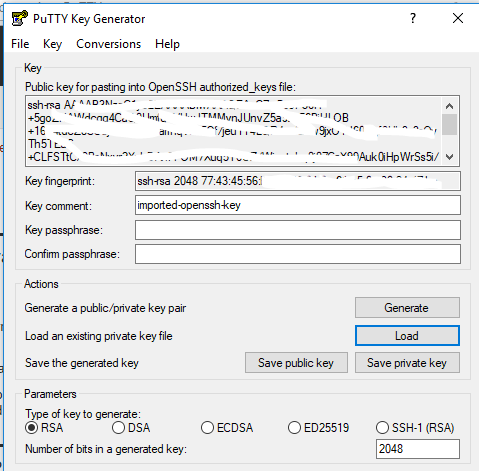
PuTTY stores SSH private key files in the .ppk file format. To convert the OpenSSH private key file provided by the Sierra Administrative Application into a .ppk file, do the following:
  1. Start the PuTTYgen key generation utility.
  2. Click the Load button to load an existing private key file.
  3. In the Load Private Key dialog box that opens, locate the drop-down selector in the lower right corner that provides file search options. Change the selection to "All Files (*)", and navigate to the directory containing the private key file downloaded in step 2. Click the Open button.
  4. Click OK when prompted with the message "Successfully imported foreign key ....To use this key with PuTTY, you need to use the 'Save private key' command'." 
  5. Confirm that "RSA" is selected. You can find this option on PuTTYgen's main window at the bottom in the Parameters: Type of key to generate section. For the Number of bits in a generated key value, use the default of "2048".
  6. Click Save private key.   
  7. Click Yes when PuTTYgen displays a warning window with the question "Are you sure you want to save this key without a passphrase to protect it?".
  8. From the Save private key as dialog box, select the name of the PuTTY private key file, the location at which you want to store the file, and the file type. Use the file type "PuTTY Private Key Files (*.ppk)" when saving the PuTTY private key.


You can save your PuTTY configuration settings for Admin Corner access for future use. To save your configuration, do the following:
  1. Start the PuTTY client program.
  2. Configure the settings on the Session panel.
    1. Click the Session option in the Category pane on the left-hand side of the screen.
    2. In the Host Name (or IP address) field, enter your Sierra app server host name or IP address.
    3. In the Port field, enter "22".
    4. In the Connection type section, select "SSH".
  3. Configure the settings on the Data panel.
    1. Click the Connection | Data option in the Category pane on the left-hand side of the screen.
    2. In the Auto-login username field, enter "-------" with no quotation marks.[see documentation]
  4. Configure the settings on the Auth panel.
    1. Click the Connection | SSH | Auth option in the Category pane on the left-hand side of the screen.
    2. Click the Browse button under the text "Private Key file for authentication".
    3. Navigate to the directory where you saved the PuTTY-generated private key file (*.ppk), select the file, and click Open.
  5. Save your session configuration for Sierra Admin Corner on the Session panel
    1. Click the Session option in the Category pane on the left-hand side of the screen.
    2. In the blank field under the text Saved Sessions, enter a name for your Sierra Admin Corner session.
    3. Click Save


From Sierra Documentation

3/02/2017

Sierra console output

To get error messages from Sierra client, open the  iiirunner.lax   file in notepad, and edit the section below so that output goes to CONSOLE


#   LAX.STDOUT.REDIRECT
#   -------------------
#   leave blank for no output, "console" to send to a console window,
#   and any path to a file to save to the file 
 
lax.stdout.redirect=console

10/22/2015

SQL for all big records

This SQL will give you links to all the bib records in your III catalog:  (Sierra Listserv, Craig Borman)


SELECT
--*
--p.best_title_norm,
--p.best_author_norm,
'http://your.iii.catalog.url.here/record=b' || m.record_num || '&' || 'title=' || p.best_title_norm || '&' || 'author=' || p.best_author_norm || '/'

FROM
sierra_view.record_metadata m

LEFT OUTER JOIN sierra_view.bib_record_property p
ON (m.id = p.bib_record_id)

WHERE
m.record_type_code = 'b'

AND
m.campus_code = ''

AND
m.deletion_date_gmt IS null

LIMIT 500
--OFFSET 1500000
;


https://github.com/joemontibello/iii-sql-queries

9/16/2015

SQL for fines Purged from III ILS

From Sierra Listserv, 2015-09


Report for fine purges from a Sierra database, used the query below to produce a report in the same format as the Fines Paid function.


WITH
  charge_type(charge_type_code, charge_type_desc) AS
  (
    VALUES
      ( '1', 'Manual Charge' ),
      ( '2', 'Overdue' ),
      ( '3', 'Replacement' ),
      ( '4', 'Adjustment' ),
      ( '5', 'Lost Book' ),
      ( '6', 'Overdue Renewed' ),
      ( '7', 'Rental' ),
      ( '8', 'Rental Adjustment' ),
      ( '9', 'Debit' ),
      ( 'a', 'Notice' ),
      ( 'b', 'Credit Card' ),
      ( 'p', 'Program' )
  ),
  fine_creation_mode(fine_creation_mode_code, fine_creation_mode_desc) AS
  (
    VALUES
      ( 'a', 'Automatic' ),
      ( 'm', 'Manual' ),
      ( 'x', 'Adjustment' )
  ),
  payment_status(payment_status_code, payment_status_desc) AS
  (
    VALUES
      ( '0', 'No Payment' ),
      ( '1', 'Full Payment' ),
      ( '2', 'Partial Payment' ),
      ( '3', 'Waive' ),
      ( '4', 'Item Busy' ),
      ( '5', 'Will Pay' ),
      ( '6', 'Purge' ),
      ( '7', 'Credit' ),
      ( '8', 'Adjustment' )
  )
SELECT
    to_char(fp.fine_assessed_date_gmt, 'MM/DD/YYYY') AS "Date Assessed",
    TRIM(BOTH FROM pn.last_name || ', ' || pn.first_name || ' ' || pn.middle_name) AS "Patron Name",
    pm.record_num AS "Patron Record",
    fp.patron_record_metadata_id AS "Patron Unique ID",
    fp.invoice_num AS "Invoice",
    fp.item_charge_amt AS "Charge Amount",
    fp.processing_fee_amt AS "Processing Fee",
    fp.billing_fee_amt AS "Billing Fee",
    ct.charge_type_desc AS "Charge Type",
    fp.charge_location_code AS "Owning Location",
    to_char(fp.paid_date_gmt, 'MM/DD/YYYY') AS "Date Paid",
    fp.tty_num AS "Statistics Group",
    fp.last_paid_amt AS "Last Payment",
    fp.iii_user_name AS "Initials",
    fcm.fine_creation_mode_desc AS "Creation Mode",
    fp.description AS "Description",
    fp.paid_now_amt AS "Amount Paid",
    ps.payment_status_desc AS "Payment Status",
    COALESCE(NULLIF(fp.payment_type_code, ''), 'null') AS "Payment Type",
    fp.payment_note AS "Payment Note"
  FROM
    sierra_view.fines_paid AS fp
    LEFT JOIN sierra_view.record_metadata AS pm
      ON (
        pm.id = fp.patron_record_metadata_id
      )
    LEFT JOIN sierra_view.patron_record_fullname AS pn
      ON (
        pn.patron_record_id = fp.patron_record_metadata_id
        AND pn.display_order = 0
      )
    LEFT JOIN charge_type AS ct USING ( charge_type_code )
    LEFT JOIN fine_creation_mode AS fcm USING ( fine_creation_mode_code )
    LEFT JOIN payment_status AS ps USING ( payment_status_code )
;

Regards,
Jim Nicholls

-----------------


For the query to work with multiple fine purges and when your fines_paid has more than just fine purge data, you need to add the following where clause:


  WHERE
    fp.payment_status_code = '6'
    AND fp.paid_date_gmt >= DATE '2014-12-16' -- Purge date, YYYY-MM-DD

I’ve added the query to the IUG clearinghouse.


Regards,
Jim
 

9/10/2015

SQL to locate item records with no bib records


Here is SQL for III ILS to  locate item records with no bib records:


--  Locate  for item records with no links
--  John Boggs  - Sierra Listerv - 2015-09

SELECT
  *
FROM
  sierra_view.item_view
LEFT JOIN
  sierra_view.bib_record_item_record_link ON
  item_view.id = bib_record_item_record_link.item_record_id
WHERE
  bib_record_item_record_link.item_record_id is NULL

9/04/2015

Hourly usage stats from ILS


Question:  Is there any way to get specific item usage by hour?  (From Innovative ILS)


You can get hourly checkout information through a SQL query assuming that your circ_trans view is being populated with data (I'm not sure if that is done by default for everyone yet), the period of time that is covered by your circ_trans data, and the period you want to investigate.

Here is a simple example that will give an hourly breakdown of all checkouts for yesterday:

SELECT
   TO_CHAR(ct.transaction_gmt, 'HH24:00')                AS "Hour",
   COUNT(*)                                              AS "Checkouts"
FROM
   sierra_view.circ_trans AS ct
WHERE
   ct.op_code = 'o'                                            -- checkout
   AND
   DATE(ct.transaction_gmt) = DATE(now() - INTERVAL '1 day')   -- yesterday
GROUP BY 1
ORDER BY 1
;


This example adds a column for location code and limits the output to items located in Langara's media dept:

SELECT
   ct.item_location_code                                 AS "Location",
   TO_CHAR(ct.transaction_gmt, 'HH24:00')                AS "Hour",
   COUNT(*)                                              AS "Checkouts"
FROM
   sierra_view.circ_trans AS ct
WHERE
   ct.op_code = 'o'                                            -- checkout
   AND
   DATE(ct.transaction_gmt) = DATE(now() - INTERVAL '1 day')   -- yesterday
   AND
   ct.item_location_code LIKE 'lm%'                            -- from Langara Media
GROUP BY 1,2
ORDER BY 1,2
;


This example limits the query from Example 1 to a specific item record number. This may be closest to what you're aiming for:

SELECT
   TO_CHAR(ct.transaction_gmt, 'HH24:00')                AS "Hour",
   COUNT(*)                                              AS "Checkouts"
FROM
   sierra_view.circ_trans AS ct
JOIN
   sierra_view.item_view AS iv
   ON
   iv.id = ct.item_record_id
WHERE
   ct.op_code = 'o'                                            -- checkout
   AND
   DATE(ct.transaction_gmt) = DATE(now() - INTERVAL '1 day')   -- yesterday
   AND
   iv.record_num = '1211068'                                   -- specific item record
GROUP BY 1
ORDER BY 1
;


--
Brent Searle