Navigation

4/04/2018

Edge browser: switching default search engine


Microsoft Edge no longer uses search providers you have to install from Microsoft’s website. Instead, when you visit a web page that uses the “OpenSearch” standard to expose its search engine information, Edge notices this and makes a record of the search engine information.

This is the same way Google Chrome works, too—visit a web page with OpenSearch and Chrome will automatically detect it.

All you need to do is visit the search engine’s website to add that search engine to Edge. If you want to install Google, visit Google’s homepage.  Once you’ve done so, you can make it the default using the instructions below.


Not every search engine supports OpenSearch yet, but we expect search engines will add support for this very quickly.

To change your search provider, click the menu button—that’s the button with three dots at the top-right corner of the Microsoft Edge window. Select “Settings” in the menu.


Scroll down in the “Settings” panel and click the “View advanced settings” button near the bottom.


Scroll down in the “Advanced settings” panel and you’ll see the “Search in the address bar with” setting. Click the “Change search engine” button.


You’ll see a list of available search providers. Select the search engine you want to use and click or tap “Set as Default”.


If the search engine you want to use doesn’t appear here, be sure you’ve visited the search engine’s homepage first. If you have visited the homepage and it still doesn’t appear, that search engine doesn’t support OpenSearch yet. You may want to contact the search engine and ask it to support OpenSearch so you can use it as your default search engine in Microsoft Edge.

https://www.howtogeek.com/221709/how-to-change-your-default-search-engine-in-microsoft-edge/

3/09/2018

Using Putty to telnet to Sierra ILS

To use Putty telnet to Sierra ILS:


To set up a PuTTY SSH connection, you must download the following:
  • The private key file generated by the Sierra Administrative Application. Sierra provides the private key in the OpenSSH file format.
  • The PuTTY SSH client program (putty.exe)
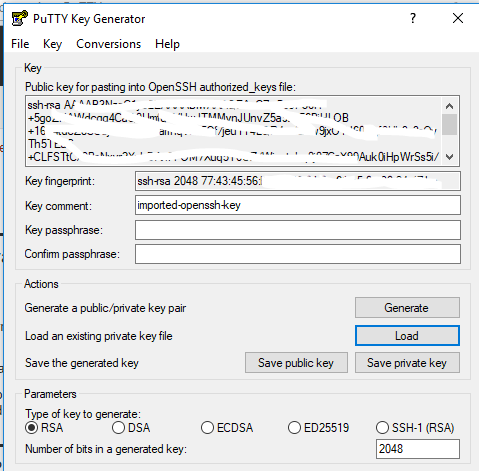
  • The PuTTYgen utility (puttygen.exe), which is used for converting the Sierra private key file into PuTTY's own private key file format

First go into Sierra admin module, download Private Key File


PuTTY stores SSH private key files in the .ppk file format. To convert the OpenSSH private key file provided by the Sierra Administrative Application into a .ppk file, do the following:
  1. Start the PuTTYgen key generation utility.
  2. Click the Load button to load an existing private key file.
  3. In the Load Private Key dialog box that opens, locate the drop-down selector in the lower right corner that provides file search options. Change the selection to "All Files (*)", and navigate to the directory containing the private key file downloaded in step 2. Click the Open button.
  4. Click OK when prompted with the message "Successfully imported foreign key ....To use this key with PuTTY, you need to use the 'Save private key' command'." 
  5. Confirm that "RSA" is selected. You can find this option on PuTTYgen's main window at the bottom in the Parameters: Type of key to generate section. For the Number of bits in a generated key value, use the default of "2048".
  6. Click Save private key.   
  7. Click Yes when PuTTYgen displays a warning window with the question "Are you sure you want to save this key without a passphrase to protect it?".
  8. From the Save private key as dialog box, select the name of the PuTTY private key file, the location at which you want to store the file, and the file type. Use the file type "PuTTY Private Key Files (*.ppk)" when saving the PuTTY private key.


You can save your PuTTY configuration settings for Admin Corner access for future use. To save your configuration, do the following:
  1. Start the PuTTY client program.
  2. Configure the settings on the Session panel.
    1. Click the Session option in the Category pane on the left-hand side of the screen.
    2. In the Host Name (or IP address) field, enter your Sierra app server host name or IP address.
    3. In the Port field, enter "22".
    4. In the Connection type section, select "SSH".
  3. Configure the settings on the Data panel.
    1. Click the Connection | Data option in the Category pane on the left-hand side of the screen.
    2. In the Auto-login username field, enter "-------" with no quotation marks.[see documentation]
  4. Configure the settings on the Auth panel.
    1. Click the Connection | SSH | Auth option in the Category pane on the left-hand side of the screen.
    2. Click the Browse button under the text "Private Key file for authentication".
    3. Navigate to the directory where you saved the PuTTY-generated private key file (*.ppk), select the file, and click Open.
  5. Save your session configuration for Sierra Admin Corner on the Session panel
    1. Click the Session option in the Category pane on the left-hand side of the screen.
    2. In the blank field under the text Saved Sessions, enter a name for your Sierra Admin Corner session.
    3. Click Save


From Sierra Documentation

2/16/2018

slow opening downloads folder - Windows 10

To speed up Downloads folder:


When you're browsing through your hard drive in File Explorer, most folders open quickly. However, the Downloads folder, can take much longer to fully load.
1451584220
The slow-loading Downloads folder problem occurs because, by default, Windows is trying to create thumbnails for photos and videos in the folder, even if none of the files are pictures. With a quick settings change, you can make the Downloads folder open quickly in Windows 7, 8 or 10. Here's how.

1. Open File Explorer. You can get there by hitting Windows Key + E or clicking on the explorer icon in your taskbar.
2. Right click on the Downloads shortcut in the right window pane and select Properties.
1451584645 493.17211703959403
3. Navigate to the Customize tab.
Customize
4. Select "General items" from the "Optimize this folder for:" list.
1451584920 293.16432865731403
5. Click Ok.

https://www.laptopmag.com/articles/slow-windows-downloads-folder

2/08/2018

SSL encyption for website

For free SSL certificate:
To enable HTTPS on your website, you need to get a certificate (a type of file) from a Certificate Authority (CA). Let’s Encrypt is a CA. In order to get a certificate for your website’s domain from Let’s Encrypt, you have to demonstrate control over the domain. With Let’s Encrypt, you do this using software that uses the ACME protocol, which typically runs on your web host.  

https://letsencrypt.org/


1/31/2018

Differences between Android 7 and 8 (Oreo vs Nougat)


1. Notifications

Android O looks to improve upon every good thing Android Nougat brought along, and then some. With Android O, we’re getting Notification Channels, which are basically categories that an app can classify its notifications into. This means that instead of having to change notification settings for an entire app, users will now get even more fine-grained control over the kinds of notifications they want.
Notification Controls in Android O (left) vs Android Nougat (right)
Notifications can also be snoozed in Android O, and this really does look like a good feature. Users will be able to simply swipe a notification, and tap on the snooze icon to snooze the notification for a default time of 15 minutes. This can be extended (at least in the current Developer Preview) to a maximum of 1 hour. Personally, I’d like to have some sort of custom time here, the way “Inbox” handles snoozing emails, but this is just the first Developer Preview, so there’s a lot of time for that.
Notification Options in Android O (left) vs Android Nougat (right). The clock icon is Snooze.
There’s also a minor change in the way the Notification Shade behaves on Android O. While double swiping on the Status Bar in Android Nougat used to hide some of the lower notifications in order to properly display the Quick Settings panel, Android O converts them into small app icons on the bottom of the Notification Shade instead. So while the Quick Settings panel gets displayed properly, you’ll still be able to see the apps that have pending notifications, without having to swipe back up.


For more:
https://beebom.com/android-o-vs-android-nougat/

1/26/2018

Windows 10 update error


If you’re seeing the Error 0x80248007 on your screen when you try to update your Windows 10, here are 2 fixes:

Method 1: Modify Windows Update service

This problem is usually related to ill-functioned Windows Update services. To fix it: 

Step 1: Reset Windows Update Service

1) On your keyboard, press the Windows logo key . Then click  Control Panel. 
2) View by Large icons and click Administrative Tools
3) Double-click Services
Note: If you’re prompted for administrator confirmation, type the password or provide confirmation. 
4) Right-click Windows Update and click Stop.

Step 2: Delete temporary update files in SoftwareDistribution folder

1) Go to C:\Windows\SoftwareDistribution
2) Double-click DataStore folder to open it. Delete all the files and folders in it. 
3) Go back to SoftwareDistribution folder, double-click Download folder to open it, then delete all the files in this folder.  

Step 3: Restart Windows Update service

1) Open Windows Update service again (Control Panel > Administrative Tools > Services > Windows Update). 

2) Right-click Windows Update and click Start
3) Close the Services window and the Administrative Tools window. 

Method 2: Restart Windows Installer service

1) On your keyboard, press the Windows logo key and X at the same time. Click Command Prompt (Admin)
Click Yes when this notification pops out. 

2) Type net start msiserver and press the Enter key on your keyboard. 
3) See if the problem is resolved. 


https://www.drivereasy.com/knowledge/windows-update-error-0x80248007-in-windows-10/

1/21/2018

Alternative App store for Android


F-Droid is an installable catalogue of FOSS (Free and Open Source Software) applications for the Android platform. The client makes it easy to browse, install, and keep track of updates on your device.


https://www.wired.com/story/android-users-to-avoid-malware-ditch-googles-app-store


https://f-droid.org/en/

1/11/2018

Safe mode and repair for Windows 10


With a Windows 10 installation DVD or USB memory stick lying around, or if you can create one, you can use it to boot your broken PC with Windows 10 into Safe Mode. To create a Windows 10 installation drive, follow the steps from this tutorial: How to download Windows 10 Creators Update and create your own installation media. Then use it to boot your broken Windows 10 PC from it and wait for the installation environment to load. Choose the language and keyboard layout you prefer and click or tap on Next.
Windows 10, Safe Mode, boot, recovery, repair
Next, click or tap on the link that says “Repair your computer” on the bottom left corner of the screen.
Windows 10, Safe Mode, boot, recovery, repair
Click or tap on Troubleshoot.
Windows 10, Safe Mode, boot, recovery, repair
On the “Advanced options” screen, click/tap on “Command Prompt (Use the Command Prompt for advanced troubleshooting).”
Windows 10, Safe Mode, boot, recovery, repair
Now Command prompt will load. Inside it, write the command: bcdedit /set {default} safeboot minimal. Then press Enter on your keyboard.
Windows 10, Safe Mode, boot, recovery, repair
After a moment, Command Prompt tells you that “The operation [was] completed successfully.”
Windows 10, Safe Mode, boot, recovery, repair
Then close the Command Prompt and choose to Continue on the next screen.
Windows 10, Safe Mode, boot, recovery, repair
After your PC reboots, Windows 10 will automatically boot into Safe Mode.


https://www.digitalcitizen.life/4-ways-boot-safe-mode-windows-10


12/07/2017

IP address lookup of AD domain server

Wanted to find IP address of active domain server, from command prompt type:


nslookup    
set type=all
_ldap._tcp.dc._msdcs.DOMAIN_NAME


From Serverfault

12/04/2017

Join Apple OS to Windows domain

To join computer with Apple OS to Windows domain, goto system preferences, user accounts:


Click the Lock to make changes to these settings. Then click the Join button next to Network Account Server
How to Join a Mac to a Windows Domain - 5
Now click the Open Directory Utility button
How to Join a Mac to a Windows Domain - 6
You should now be at the Directory Utility; click the Lock to make changes. Then make sure Active Directory is checked, highlight it, and then click the Pencil to edit this setting.
How to Join a Mac to a Windows Domain - 7
Here you can enter your domain information and computer ID. For this example the domain is hq.test.us and the computer ID is Mac. The computer ID is the computer name that will show up in Active Directory once the Mac is joined to the domain.
How to Join a Mac to a Windows Domain - 8
Click the arrow to Show Advanced Options. This gives you 3 extra options you can configure. To keep it simple I usually leave these settings default except for the Administrative section. Click the Administrative button and enter the IP address or the FQDN of your domain controller in the Prefer this domain server section. For this example I used the IP address of my domain controller 192.168.1.172. You can also specify groups that are allowed administration privileges.
How to Join a Mac to a Windows Domain - 9
Now click the Bind button and you will be prompted for credentials. Enter your domain administrator username and password and click OK.
How to Join a Mac to a Windows Domain - 10
You should see it progress through steps 1-5 as you are authenticated and joined to the domain.
How to Join a Mac to a Windows Domain - 11


https://www.pluralsight.com/blog/tutorials/join-mac-to-windows-domain

11/28/2017

Fixing file:boot/bcd error in Windows

PC was giving FILE:boot/bcd   error, these steps fixed it:


Repair Master Boot Record MBR

The process is almost same for Windows 10/8/7. First and foremost you need a Windows installation DVD/USB. (Windows 10 Installation Tool)

Step 1:
Press F8 while booting the system to go into the Windows Recovery Menu. Unlike other version Windows 8’s recovery menu has the Metro UI style.

Step 2:
Click on Troubleshoot.

Repair-Master-Boot-Record-3


Step 3:
Click on Advanced options to get into Automatic Repair menu.

3_thumb1
Step 4:
We need to use the Bootrec.exe tool. Click on command prompt and type in the following commands, one after the other:
repair master boot record
 
bootrec /RebuildBcd
 
bootrec /fixMbr
 
bootrec /fixboot


from http://www.thewindowsclub.com/

11/17/2017

Windows 10 Installation tool

To fix or repair Windows 10, use this tool


Some requirements:
  • An internet connection (internet service provider fees may apply).
  • Sufficient data storage available on a computer, USB or external drive for the download.
  • A blank USB flash drive with at least 8GB of space or blank DVD (and DVD burner) if you want to create media. We recommend using a blank USB or blank DVD, because any content on it will be deleted.
  • When burning a DVD from an ISO file, if you are told the disc image file is too large you will need to use Dual Layer (DL) DVD Media.
Check a few things on the PC where you want to install Windows 10:
  • 64-bit or 32-bit processor (CPU). You’ll create either a 64-bit or 32-bit version of Windows 10. To check this on your PC, go to PC info in PC settings or System in Control Panel, and look for System type.
  • System requirements. Make sure the PC meets the system requirements for Windows 10. We also recommend going to the PC manufacturer's website for additional info about updated drivers and hardware compatibility.
  • Language in Windows. You'll need to choose the same language when you install Windows 10. To see what language you're currently using, go to Time and language in PC settings or Region in Control Panel.
  • Edition of Windows. You should also choose the same edition of Windows. To check what edition you're currently running, go to PC info in PC settings or System in Control Panel, and look for Windows edition. Windows 10 Enterprise isn’t available in the media creation tool. For more info, go to the Volume Licensing Service Center.

11/03/2017

10/24/2017

wiping an Apple HD clean

Need to clean off an Apple iMac before it is sold:


Start up from macOS Recovery
macOS Recovery installs different versions of macOS depending on the key combination you use while starting up. Turn on or restart your Mac, then immediately hold down    Command (⌘)-R

To erase your startup disk:
  1. Select Disk Utility from the utilities window of macOS Recovery, then click Continue.
  2. Select your device or volume in the sidebar of Disk Utility.
  3. Click the Erase button or tab.
  4. Complete these fields:
  5. Click Erase to begin erasing your disk.


https://support.apple.com/en-us/HT204904

9/11/2017

Apple OS startup options

To bootup with diagnostics: 


To use any of these key combinations, press and hold the keys immediately after pressing the power button to turn on your Mac, or immediately after your Mac begins to restart. Keep holding until the described behavior occurs.
If your Mac is using a firmware password, all of these key combinations are disabled, except as noted below.
Hold during startup Description
Shift (⇧) Start up in safe mode.
Option (⌥) Start up to Startup Manager, which allows you to choose other startup disks, if available.
If your Mac is using a firmware password, you're asked to enter the password first.
C Start up from an available CD, DVD, or USB thumb drive that contains a valid operating system for your Mac. Or use Startup Manager, as described above.
D Start up from the built-in Apple Hardware Test or Apple Diagnostics utility, depending on your Mac model. Or use Option-D to start up from this utility over the Internet.
N Start up from a compatible NetBoot server, if available. To use the default boot image on the NetBoot server, hold down Option-N instead.
Command-R Start up from the built-in macOS Recovery system. Or use Option-Command-R or Shift-Option-Command-R to start up from macOS Recovery over the Internet. macOS Recovery installs different versions of macOS, depending on the key combination you use while starting up.
Option-Command (⌘)-P-R Reset NVRAM (or PRAM).
If your Mac is using a firmware password, this combination causes your Mac to start up from macOS Recovery instead. Turn off the firmware password from macOS Recovery, then restart and reset NVRAM.
Command-S Start up in single-user mode.
T Start up in target disk mode.
X Start up from your macOS startup disk when your Mac would otherwise start up from a non-macOS startup disk, such as a Windows partition. Or use Startup Manager, as described above.
Command-V Start up in verbose mode.
Eject (⏏), F12, mouse button, or trackpad button Eject removable media, such as an optical disc.
These combinations work with Intel-based Mac computers. Other Mac keyboard shortcuts are available after your Mac has started up.


Apple website

9/08/2017

microphone shutdown - Skype

Have Skype running on Windows and microphone keeps shutting off after 10 mintues:


the fix:
Control panel -> Hardware and Sound -> power options -> change plan settings -> advanced power settings -> USB settings -> USB selective suspend settings: DISABLED


from Microsoft

8/21/2017

determing Windows version via BAT script

Need to determine which version of Windows on laptops via CMD file:


for /f "tokens=4-5 delims=. " %%i in ('ver') do set VERSION=%%i.%%j
 
ECHO   %version% 


@echo off
for /f "tokens=4-7 delims=[.] " %%i in ('ver') do 
     (if %%i==Version (set v=%%j.%%k) else (set v=%%i.%%j)) 
 
if %v% == "10.0" goto  Win10

if %v% == "6.1" goto  Win7


:Win7
echo   Windows 7
goto exit

:Win10
echo   Windows 10
goto exit


:exit
pause

8/15/2017

remove Box login from Apple OS

Need to remove Box sync software from Apple computer (keeps pop up on login):


  • Quit Box Sync from the menu in the task bar.
  • For users on Mac OS X 10.10+, open System Preferences > Extensions. Click Finder in the left-hand panel and unselect Box Sync Finder Extension.
  • Delete Box Sync from your Applications folder.
  • Navigate to the Library folder in your user profile
    • Note: The library folder is hidden by default. Follow the steps below to locate the Library folder:
      • Click on Go in the upper left hand toolbar
      • Hold the Alt/Option key on your keyboard and select the Library folder
  • In the Library folder, delete the items below:
    • Macintosh HD/Users/[username]/Library/Logs/Box/Box Sync/
    • Macintosh HD/Users/[username]/Library/Application Support/Box/Box Sync/
  • Navigate to your Macintosh HD library
    • Click the magnifying glass in your upper right corner of the screen
    • In the Spotlight Search, type Macintosh HD
    • Select Macintosh HD
    • In the Finder window, select the Library folder
  • Delete these items in the Macintosh HD Library
    • HD/Library/PrivilegedHelperTools/com.box.sync.bootstrapper
    • Macintosh HD/Library/PrivilegedHelperTools/com.box.sync.iconhelper
  • Delete the Box Sync password items in Keychain. Open Keychain Access from Applications > Utilities. Click on login under Keychains in the top left. Then click on Passwords under Category. Find the Box Sync items and select Delete "Box Sync" in the right-click menu.

 from Box

8/14/2017

IP printing via Chrome OS

Want to setup IP printing to HP printer from student Chromebooks:


Step 1: Connect to Wi-Fi

  1. Turn on your printer.
  2. Connect your printer to a Wi-Fi network. If you need help, follow your printer manufacturer’s instructions.
  3. If you haven’t yet, turn on your Chromebook and sign in.
  4. Connect your Chromebook to the same Wi-Fi network as your printer. Learn how to connect to Wi-Fi.

Step 2: Add your printer to your Chromebook

Important: You’ll need to know your printer’s IP address, protocol, and queue. To find them, check your printer’s display panel, manual, device specs, or help website.
  1. Click your account photo.
  2. Click Settings Settings.
  3. At the bottom, click Advanced.
  4. In the "Printing" section, click Printers.
  5. Click Add Printer.
  6. Enter your printer information:
    • Name: Type any name.
    • Address: Type your printer’s IP address.
    • Protocol: For most printers, the supported connection protocol is IPP.
    • Queue: For most printers, the queue is ipp/print.
  7. Click Add.
  8. In the box that appears, choose your printer manufacturer and model.
    • To find this info, look at the label on your printer.
    • If you don’t see your printer in the list, check your printer info for its "printer language" or "emulation." Then choose the "Generic" option that looks similar.
    • If you have your printer driver, click Browse to upload it. The file must be 250 kb or smaller.
  9. Click Add.

From Google