HTML, CSS, batch commands, and Javascript examples that I have used in my library work. Short entries, designed as quick reference. By Len Davidson at CUA Law Library
Got an RDP error, "This could be due to CredSSP encryption oracle remediation" There is easy fix, just change setting on remote PC:
Simply adjust the Remote Desktop settings on the host machine to a
lower security level. From File Explorer, choose Computer, right-click
and select Properties, then click Change Settings, and go to the Remote
tab.
From Windows 10, uncheck the option to “Allow connections only from
computers running Remote Desktop with Network Level Authentication
(recommended)”:
Autologon 3.01 Enables you to easily configure Windows' built-in autologon mechanism, so you don't have to wait on the login screen.
BIOS Master Password Generator
Collection of password generator tools to reset BIOS Power on Password /
Administrator password on Acer, Compaq, Dell, Fujitsu Siemens, Sony,
Hewlett Packard, Phoenix, Samsung and other generic brand Laptops.
BulletsPassView 1.25 Reveal the passwords stored behind the bullet (asterisk) characters in Windows / IE (Updated Asterisk Logger).
ClearLock 1.4.0
Lock your desktop with a transparent layer, allowing you to see what is
happening on your desktop and at the same time prevent access to the
computer without the proper password.
Router IP/Passwords
The complete list of Default Router Passwords and Default Router IP
Addresses, can be useful if you have misplaced the manual or lost your
router password.
SniffPass 1.13
A password monitoring tool that listens to your network, capture the
passwords that pass through your network adapter, it works on POP3,
IMAP4, SMTP, FTP, and HTTP protocols and recovers lost Web/FTP/Email
passwords.
WebBrowserPassView 1.30
Allows you to view the user names and passwords stored by Mozilla
Firefox, Opera, Safari, Google Chrome and Internet explorer Web
browsers.
WindowsGate 1.1 Enables/Disables Windows logon password validation.
Windows Product Key Update Tool 1.7
This tool is from microsoft to change the key of illegal/pirated
installed Xp to legit xp keys from the sticker on the PC, even if it is
oem and not retail/corporate.
WirelessKeyView 1.56 Recovers all wireless network keys (WEP/WPA) stored in your computer by WZC Wireless Zero Configuration.
Here's how to help user with Windows 10 computer remotely through Quick Assist.
Five things to keep in mind before starting
1. Although Quick Assist works on all versions of Windows 10 (with the Anniversary Update installed), it's not available for older versions of Windows. If either computer uses an older version of Windows, both will need to use an earlier tool called Windows Remote Assistance instead.
2. Quick Assist is not a "set it and forget it" remote desktop tool. The person who needs assistance with their Windows 10 computer must be sitting in front of it -- at least initially, to grant permission for it to be connected and controlled by the computer of the person who will help them. In fact, we recommend that both parties be present at all times. Because the person providing assistance will have full access to the other computer and everything on it, a great deal of trust is involved; it can be more comfortable for both parties if that computer is never left unattended.3. Quick Assist works better if each Windows 10 computer has fast and reliable internet access. If you're the one controlling the other computer remotely, a flaky or slow connection can result in sluggish performance. For example, if you click to close an application window on the other computer, it may take several seconds to see this happening on your computer's screen.
Generally speaking, if you and the other person can hold a video chat session, such as through Skype, and the image and sound quality is good (especially at your end), then the connection your computers share is probably suitable for Quick Assist.
4. Quick Assist won't stream sound from the remote computer. This shouldn't matter, unless you're trying to fix an audio issue with the other computer.
Make the connection
Assuming that you will be the one who will control the other person's Windows 10 computer over the internet, here's how to get connected:
1. Launch the Quick Assist tool. It's listed under the Windows Accessories folder -- or just search the Start menu for "Quick Assist."
2. In the Quick Assist window that appears, click Give Assistance.
To help another Windows 10 user remotely, launch the Quick Assist app and choose Give Assistance. 3. Sign in with your Microsoft Online account. No longer required
4. Quick Assist generates a 6-digit security code. Give this code (by email, instant messenger, text or voice call) to the person whose computer you will need to connect to. After 10 minutes, this code will become invalid.
When you start a Quick Assist session, a 6-digit security code is generated for the person you are supporting to enter on their computer. 5. At the other end, the person who needs your help with their Windows 10 PC needs to launch the Quick Assist tool on their computer and click Get Assistance. Then they enter the 6-digit security code you gave them, and click Submit.
6. Next, they will be presented with a "Share your screen" permissions window, where they will need to click Allow.
The person you are assisting must give you permission to access their PC.
What you see, what they see
After a few seconds or more (this depends on the connection speed between the computers), Quick Assist will display the Windows 10 desktop of the other person's computer inside an application window, which will be bordered with a yellow frame.
When you're assisting someone else, you'll see their Windows 10 desktop inside a yellow frame. As with any other Windows desktop application, you can minimize this application window, maximize it to full-screen, move it around your desktop, or resize it by dragging its sides or corners. However, the desktop of the other person's computer always appears inside this application window; there's no option that lets you enlarge it to fill your own computer's screen.
To interact with the other computer, move your mouse pointer over the image of the other computer's Windows 10 desktop, and then just use your computer's keyboard and mouse (or touchpad) as you normally would when using your own computer.
From the point of view of the other computer, the person sitting in front of it will see that their Windows 10 desktop is framed by a yellow border. They will see the mouse pointer move as you control it from your computer, and they will also see the text and other characters you type from your computer's keyboard.
The person you're assisting will see their own desktop inside a yellow frame. As you move your mouse or enter text, they will see those actions on their desktop. They can still use their own computer's keyboard and mouse or touchpad, which will interfere with your actions if you're both doing this at the same time. If you plan to use Quick Assist to teach the other person how to do something on their computer -- for example, you perform an action remotely on their desktop, then watch as they repeat your action -- it's best to be on a phone call together so you can not only explain what you're doing, but also let them know when it's their turn to take control of their computer. (I wouldn't advise using Skype or another video streaming connection via the computers, because it sucks up bandwidth and could slow down Quick Assist.)
The person sitting in front of the other computer can temporarily pause your control over their computer at any time by clicking the "pause" icon next to "Screen sharing on" in the menu that appears at the top-center of their screen. When they click to pause, the yellow border framing their Windows 10 desktop turns gray. The pause icon will change to a triangle "play" icon, which they click when they want you to resume control over their computer.
The person at the remote computer can pause or end screen sharing at any time. They can also revoke your remote control of their computer by clicking the "X" next to "Quick Assist." This completely ends the session.
Q.Can anyone using the computer see the past activities listed in the Windows 10 Timelime?
A.The Timeline feature included with the Windows 10 April 2018 Update is meant to enhance your productivity by storing a record of the files you used, sites you browsed and other actions you made on your computer. Can’t remember where you stored a document or want to return to a particular website quickly? You can click the Timeline icon in the Windows 10 task bar to see a visual log organized by date, and jump back to what you need by clicking the appropriate preview icon.
If Timeline is enabled, some of your PC activity — like files you edit in Microsoft Office — can also sync with your mobile device or another computer you use. And the tool works with the Cortana virtual assistant and its “pick up where you left off” function, which restores your work space on command.
The activity data is recorded based on the Microsoft account, so if you share both the computer and the same user account, the Timeline records are visible to all involved. To keep your travels private, create a separate account for one of you to use. If you’d generally like to keep your activity private and do not want Windows 10 tracking it, you can turn off the Timeline feature, hide it or edit it.
Press the Windows and I keys to open the Settings box (or click the gear-shaped Settings icon in the Start Menu) and select the Privacy icon. On the left side of the Privacy box, select Activity History and turn off the box next to “Let Windows collect my activities from this PC” on the right side. If your computer was set to sync your activities with other devices online, also disable “Let Windows sync my activities from this PC to the cloud.”
If you eventually get separate accounts on the computer and one of you wants to use the Timeline feature, enable the data collection option in the Activity History controls again. In the “Show activities from accounts” area of the Settings box, flip on the switch next to the account wishing to use Timeline. Within the Activity History settings box, you can also wipe your activity history. To remove activities directly from the Timeline screen, right-click the thumbnail preview and choose the Remove or Clear option.
For those who find the feature useful and wish to use it, pressing the Windows and Tab keys opens the Timeline from the keyboard. You can also open Timeline by clicking its Taskbar icon next to the Cortana search box. Don’t see the Timeline icon? Right-click the Taskbar and choose “Show Task View Button.”
A. For years, Mac computers did not come with utilities like Disk Cleanup and the newer Storage Sense found in Windows, but Apple added new tools in 2016 with the release of its macOS Sierra
system. If your Mac is running at least that version of the system, go
to the Apple Menu, select About This Mac and click the Storage tab.
On
the Storage screen, you should see a graphic showing your drive’s
available space. Click the Manage button on the right side of the box to
get started. The resulting storage-management screen offers four ways to clear off old files: Store in iCloud, Optimize Storage, Empty Trash Automatically and Reduce Clutter.
As one might expect, the Store in iCloud option punts documents, photos and Messages off your Mac’s drive and into your iCloud online storage locker. While this does free up room on the computer, you may have to buy more iCloud storage space from Apple if you fill up your five gigabytes that come free with an iCloud account.
You just have to find one jumper which is normally under hard drive. This works at least with Dell Optiplex 6xx and 7xx series.
Jumper is normally marked with text “PSWD” and it’s pretty easy to find because it’s probably blue/green when other jumpers are black and smaller.
First of all shutdown your computer and unplug power supply cable from back of your computer.
Open the case and you should see hard drive. Remove it (no need to unplug cables) and you should see “PSWD” labeled jumper under the hard drive.
Remove the jumper and plug power cord back to computer and turn on the computer. You should soon see “password” removed” text on the screen.
Power off your computer and unplug power cord again. Now you just need to put jumper back where you removed it and put hard drive back and close the cover.
Plug power supply cable again back and turn on your computer. If you hit F2 right away when you see text on the screen you should access the BIOS menu and you should notice that password is gone now and you can access everything on BIOS and you can even change password if you want (no need to do that).
Step 1 – Copy VOB File:
Your first task is to copy the .vob file from the DVD to your hard
drive. Find your .vob files, they are usually in the VIDEO_TS folder of
our DVD. You can’t rename the .vob file on a DVD because DVDs are read
only, so copy the .vob file from the DVD to your hard drive.
Step 2 – Rename VOB File To MPEG: Windows Users (Right-Click) Right click the .vob file on your hard drive and choose Rename from the menu. Rename VTS_01.vob to VTS_01.mpeg.
Step 3 – Import & Edit MPEG Video File:
Import
the file into a video editing application, such as Premiere Essentials,
Premiere Pro, Windows Movie Maker or iMovie. Once the file is imported,
drag the video file from the project panel to the timeline. If you have
multiple files, place them in the desired order, creating a sequence of
clips and events, which play in the timeline from left to right. When
you have finished editing the timeline, you can play it back in real
time or export it in a variety of formats.
The successor to Windows Movie Maker is easy and fun to use
Very simple to use
Pre-installed with Windows 10
Good choice of filters and effects
No multi-track timeline
The
Fall Creators Update brought many fun and useful new features to
Windows 10, including a video editor that's a direct replacement for
Windows Movie Maker. Interestingly, it's tucked away in the Microsoft Photos app, but it's easy to use and very accessible for beginners.
Start
by choosing your media files (photos and video) and arranging them in a
sequence. You can then make some simple edits (like trimming video
clips and applying filters), apply fun motion effects and titles, and
set the whole thing to a lively soundtrack.
You don't get quite as
much granular control as you did in Windows Movie Maker (you don't have
separate tracks for video and audio, for example). but the effects and
transitions are vastly improved, and it's much easier for a complete
beginner to achieve good-looking effects. Once you're done, you can save
the video to your PC or share it straight via Skype, YouTube or
OneNote. You won't find a more direct replacement for Windows Movie
Maker
Q.What is the best antivirus software for a Mac laptop?
A. Macs, with built-in protections
and fewer users than Windows systems, have traditionally been less of a
target for virus makers — but these factors do not make Apple’s
computers invulnerable. Macs have been targeted by ransomware and other malware before, and bad browser extensions, phishing sites and socially engineered fraud schemes are cross-platform problems.
Given the general security features of the operating system, Wirecutter, a product review and testing site owned by The New York Times, recommends Malwarebytes Premium
($40 a year) to shore up the Mac’s own defenses against malicious
software. Some security programs can slow down your system, but
Malwarebytes Premium was selected for its effectiveness while being
relatively nonintrusive.
In addition to its Premium version, which monitors your Mac in real time, Malwarebytes for Mac
is available in a free edition that scans for any malware already on
your system. When you download the free version, you get a complimentary
30-day trial of the Premium product so you can give it a test run
before getting out the credit card.
If a free antivirus program fits your budget better, several tech-focused publications (including Macworld, TechRadar and Tom’s Guide) favor Avast Free Mac Security. The $60 Avast Security Pro for Mac adds protections against ransomware and intruders on your home wireless network.
PCMag.com, which independently tests a wide range of security programs for Mac and Windows computers each year, has chosen BitDefender Antivirus for Mac as its 2018 Editors’ Choice pick.
The $48 all-around security suite also includes virtual private network
(VPN) protection to protect your personal data going over a computer’s
connection to the internet.
Go to File Explorer and hit the following path in the search address.
C:\Users\YourUsername\AppData\Local\Packages
Make sure you give your user account name in the path by replacing YourUsername with the user account name.
Hit Enter.
Search for Microsoft.MicrosoftEdge_8wekyb3d8bbwe folder and right-click on it.
Select Properties and uncheck the Read-Only option in the Properties window.
Click Apply and OK.
Search for Microsoft.MicrosoftEdge_8wekyb3d8bbwe folder. Right click
on it and delete. If you get the prompt saying “Folder Access Denied”,
click on continue. This will delete most of the content inside the
folder except AC folder.
Restart your computer.
To re-register your Microsoft Edge, search Windows PowerShell in Start menu.
In the search results, right-click on it and select Run as administrator.
In the PowerShell Window, type the following command and hit Enter.
Cd C:\Users\YourUsername
Make sure you give your user account name in the path by replacing YourUsername with the user account name.
These programs start up for all users. To open this folder, bring up the Run box, type shell:common startup and hit Enter.
Or to open the folder quickly, you can press WinKey, type shell:common startup and hit Enter.
You can add shortcuts of the programs you want to start with you Windows in this folder.
Resetting lets you choose whether to keep your files or remove them, and then reinstalls Windows. To get started, go to Settings > Update & security > Reset this PC > Get started and choose an option.
If you can't open Settings, you can get to reset by restarting your PC from the sign-in screen. Press the Windows logo key +L to get to the sign-in screen, then hold the Shift key down while you select Power > Restart in the lower-right corner of the screen. After your PC restarts, select Troubleshoot > Reset this PC.
If you can't get to the sign-in screen, use a recovery drive or installation media to reset your PC.
Option
What it does
Keep my files
Reinstalls Windows 10 and keeps your personal files.
Removes apps and drivers you installed.
Removes changes you made to settings.
Removes any apps your PC manufacturer installed. (If your
PC came with Windows 10, apps from your PC manufacturer will be
reinstalled.)
Remove everything
Reinstalls Windows 10 and removes all your personal files.
Removes apps and drivers you installed.
Removes changes you made to settings.
Removes any apps your PC manufacturer installed. (If your
PC came with Windows 10, apps from your PC manufacturer will be
reinstalled.)
If you're planning to donate, recycle, or sell your PC, use
this option and choose to fully clean the drive. This might take an hour
or two, but it makes it harder for other people to recover files you've
removed.
Restore factory settings
Reinstalls the version of Windows that your PC came with (either Windows 8 or Windows 8.1) and removes your personal files.
Removes apps and drivers you installed.
Removes changes you made to settings.
Reinstalls any apps your PC manufacturer installed on your PC.
Microsoft Edge no longer uses search providers you have to install
from Microsoft’s website. Instead, when you visit a web page that uses
the “OpenSearch” standard to expose its search engine information, Edge
notices this and makes a record of the search engine information.
This is the same way Google Chrome works, too—visit a web page with OpenSearch and Chrome will automatically detect it.
All you need to do is visit the search engine’s website to add that search engine to Edge. If you want to install Google, visit Google’s homepage. Once you’ve done so, you can make it the default using the instructions below.
Not every search engine supports OpenSearch yet, but we expect search engines will add support for this very quickly.
To change your search provider, click the menu button—that’s the
button with three dots at the top-right corner of the Microsoft Edge
window. Select “Settings” in the menu.
Scroll down in the “Settings” panel and click the “View advanced settings” button near the bottom.
Scroll down in the “Advanced settings” panel and you’ll see the
“Search in the address bar with” setting. Click the “Change search
engine” button.
You’ll see a list of available search providers. Select the search engine you want to use and click or tap “Set as Default”.
If the search engine you want to use doesn’t appear here, be sure
you’ve visited the search engine’s homepage first. If you have visited
the homepage and it still doesn’t appear, that search engine doesn’t
support OpenSearch yet. You may want to contact the search engine and
ask it to support OpenSearch so you can use it as your default search
engine in Microsoft Edge.
To set up a PuTTY SSH connection, you must download the following:
The private key file generated by the Sierra Administrative Application. Sierra provides the private key in the OpenSSH file format.
The PuTTY SSH client program (putty.exe)
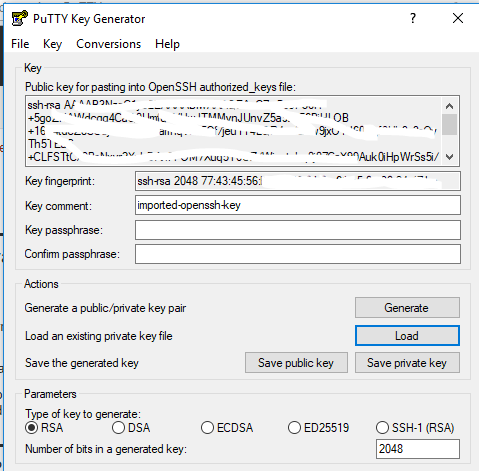
The PuTTYgen utility (puttygen.exe), which is used for converting the Sierra private key file into PuTTY's own private key file format
First go into Sierra admin module, download Private Key File
PuTTY stores SSH private key files in the .ppk file format. To convert the OpenSSH private key file provided by the Sierra Administrative Application into a .ppk file, do the following:
Start the PuTTYgen key generation utility.
Click the Load button to load an existing private key file.
In the Load Private Key dialog box that opens, locate the drop-down selector in the lower right corner that provides file search options. Change the selection to "All Files (*)", and navigate to the directory containing the private key file downloaded in step 2. Click the Open button.
Click OK when prompted with the message "Successfully imported foreign key ....To use this key with PuTTY, you need to use the 'Save private key' command'."
Confirm that "RSA" is selected. You can find this option on PuTTYgen's main window at the bottom in the Parameters: Type of key to generate section. For the Number of bits in a generated key value, use the default of "2048".
Click Save private key.
Click Yes when PuTTYgen displays a warning window with the question "Are you sure you want to save this key without a passphrase to protect it?".
From the Save private key as dialog box, select the name of the PuTTY private key file, the location at which you want to store the file, and the file type. Use the file type "PuTTY Private Key Files (*.ppk)" when saving the PuTTY private key.
You can save your PuTTY configuration settings for Admin Corner access for future use. To save your configuration, do the following:
Start the PuTTY client program.
Configure the settings on the Session panel.
Click the Session option in the Category pane on the left-hand side of the screen.
In the Host Name (or IP address) field, enter your Sierra app server host name or IP address.
In the Port field, enter "22".
In the Connection type section, select "SSH".
Configure the settings on the Data panel.
Click the Connection | Data option in the Category pane on the left-hand side of the screen.
In the Auto-login username field, enter "-------" with no quotation marks.[see documentation]
Configure the settings on the Auth panel.
Click the Connection | SSH | Auth option in the Category pane on the left-hand side of the screen.
Click the Browse button under the text "Private Key file for authentication".
Navigate to the directory where you saved the PuTTY-generated private key file (*.ppk), select the file, and click Open.
Save your session configuration for Sierra Admin Corner on the Session panel
Click the Session option in the Category pane on the left-hand side of the screen.
In the blank field under the text Saved Sessions, enter a name for your Sierra Admin Corner session.