Navigation

2/18/2022

Resume writing: Federal Government jobs

 Info on writing a resume for a federal government job:


Federal Resume Guidebook: Federal Resume Writing Featuring the Outline Format Federal Resume (Ten Steps to a Federal Job Book 1)

Book 1 of 4: Ten Steps to a Federal Job  | by Kathryn Troutman 

Federal Resume Guidebook, 7th Edition - Resume Place (resume-place.com) or

Federal Resume Guidebook: Federal Resume Writing Featuring the Outline Format Federal Resume: Kathryn K. Troutman, John Gagnon, Emily Troutman: 9781733407601: Amazon.com: Books


Find your federal job fit

Authors Janet M Ruck; Karol Taylor

Print Book©2012

Indianapolis, IN : JIST Works, ©2012.

Summary “This little book shows you how to analyze your skills, experience, and values. It introduces you to the mission and values of key federal departments and agencies. And it tells you how to create a match between you and a target job destination."--Page I.


Roadmap to Federal Jobs: A Proven Process for Finding, Applying For, and Landing U.S. Government Jobs (21st Century Career Series) Paperback – April 4, 2018

by Barbara A. Adams (Author), Lee Kelley  (Author)


The book of U.S. government jobs : where they are, what's available, and how to complete a Federal reìsumeì

Author Dennis V Damp

Print Book 2011 11th ed.

McKees Rocks, Pa. : Bookhaven Press, 2011.

Summary" The completely revised 11th edition features: entry level jobs, civil service exams, disabled hiring, agency directory, law enforcement jobs, interview prep, hiring incentives, benefits [and] pay, overseas jobs, job hot lines, hiring reform, skills index, post office jobs, resume writing guide, the job search, student jobs, professional jobs, senior executive service, veterans' preference, student loan payoff"--Page 4 of cover.


12/12/2021

Free version of MS Office

Office Online is entirely cloud-based and works on most browsers. As long as you have the internet, you have access to familiar MS Office tools like Word, Excel, and PowerPoint, as well as Sway, OneNote, Outlook, Calendar, OneDrive, Forms, People, and Skype. Simply create an account and log in from anywhere to collaborate with anyone.


https://www.microsoft.com/en-us/microsoft-365/free-office-online-for-the-web

10/21/2021

Security Keys

A good password manager is the first step to online security but not the last. Enabling two-factor authentication on your accounts is the next step, and using a physical security key is the most secure way to do so. The Yubico YubiKey 5 Series has the best combination of compatibility, usability, and security of any key we tested. 


From  Wirecutter

9/21/2021

PDF plugin in Chrome

 Had a PC where Chrome plugin would not display PDfs:


  1. Open Adobe Reader and go to Edit.
  2. Select Preferences, then Internet.
  3. Locate Display PDF in browser option and enable it / disable it.
  4. Refresh the page that you’re trying to view in Chrome and check if the problem is resolved.


From Windowsreport

9/08/2021

online tracking, web browser tracking

 Tool from the Electronic Frontier Foundation:

Cover Your Tracks is two things: a tool for users to understand how unique and identifiable their browser makes them online, and a research project to uncover the tools and techniques of online trackers and test the efficacy of privacy add-ons. Running tests on Cover Your Tracks gives you information about your own browser’s privacy protections, and also helps EFF use statistical methods to evaluate the capabilities of third-party trackers and the best forms of protection against them.


https://coveryourtracks.eff.org/about

8/21/2021

Google Bookmarks alternatives

 Google is shutting down the Google Bookmarks service from September 30. Don't worry, you can still export your bookmarks to these free bookmark apps that are arguably better.

The internet giant is getting a reputation for discontinuing beloved Google products, so maybe this time you should look for a non-Google app to save your bookmarks. There are plenty of alternatives to Google Bookmarks too, from classic bookmark managers to those that focus on organizing your links and remembering why you saved them in the first place.


Alternatives

4/07/2021

Free online courses: Udemy

How do you pick the best free courses on Udemy when there are more than 155,000 online courses to choose from? Well, here are a few steps if you are only interested in the free Udemy courses and nothing else: 

  1.     Decide on your topic.
  2.     Use the Udemy menu to drill down to the Categories.
  3.     Search for course with the right keyword in the Search Bar.
  4.     Click the All Filters button on the search result page.
  5.     Apply the Free filter.


From:

https://www.makeuseof.com/tag/best-free-udemy-courses/

2/26/2021

Microsoft Power Automate Desktop freeware

Windows 10 has new tool that allows you to record macros and do repetitive tasks automatically:

Microsoft today announced that it is making Power Automate Desktop, its enterprise-level tool for creating automated desktop-centric workflows, available to all Windows 10 users for free. Power Automate Desktop is what Microsoft calls its “attended Robotic Process Automation” solution, but you can think of it as a macro recorder on steroids. It comes with 370 prebuilt actions that help you build flows across different applications, but its real power is in letting you build your own scripts to automate repetitive and time-consuming tasks.

https://techcrunch.com/

https://flow.microsoft.com/en-us/desktop/

1/17/2021

Add/remove audio from video clip

Using the open source video editor Openshot: (Windows)


How to Remove the Audio From a Video

If you want to mute a video or you want to use your video’s audio as an independent file, you can detach the audio from your video in OpenShot:

  1. Launch OpenShot, click File > Import Files at the top and add your video to the app.
  2. Right-click your video and select Add to Timeline.
  3. Hit OK on the following screen as you don’t need to configure any options.
  4. Right-click your video on the timeline and select Separate Audio > Single Clip (all channels).
  5. If you want to mute your video, click the audio file on the timeline and hit the Delete key.
  6. Select File > Export Project > Export Video to save your video without the audio.

How to Add Background Music to a Video

You can add pretty much any music track available on your computer to your video file.

  1. Click File > Import Files to add both your audio and video files to the app.
  2. Right-click your video and select Add to Timeline.
  3. Select Track 5 from the Track dropdown menu and click OK.
  4. Right-click your music file and select Add to Timeline.
  5. This time around, choose Track 4 from the Track menu and click OK.
  6. Click File > Export Project > Export Video to save your musical video.

The idea here is that your music should appear on a different track than your video track.


https://www.makeuseof.com/how-to-edit-videos-on-windows-10/

1/04/2021

Covid Testing in MD

Testing is free. If you have insurance, we will ask for your information, but there are no co-pays or deductibles.

Does not require a government ID or a doctor's order


https://montgomerycountymd.gov/covid19/testing.html

12/21/2020

How to get email header info from Gmail


Email headers contain tracking information for an individual email, detailing the path a message took as it went through various mail servers. The headers contain time-stamps, IP addresses and sender/recipient information. Providing this information to Technology Help staff will help them troubleshoot and resolve issues with emails, such as emails not sending, bouncing incorrectly, or being marked as spam when they should not be.

Viewing Email Headers

  1. Sign into your email in a web browser.
  2. Open the email you want to check the headers for.
  3. Next to ReplyReply%20Arrow.pngx, click More, the three vertical stacking dots3%20vertical%20stacking%20dots.pngx.
  4. Click Show originalA page with the email headers will open in a new tab or window.
    More menu; the Show original option highlighted.

To view headers in other email services please see Google's support documentation viewing email headers in other mail services.


https://it.umn.edu/services-technologies/how-tos/gmail-view-email-headers

12/09/2020

free cell service


A data plan is the single most expensive part of operating a mobile phone. And that's what makes TextNow's new offer so compelling: You can get unlimited ad-supported calls and text messages absolutely free. There's no data included (more on that below), though calls do rely on voice-over-IP. Virtually all other apps that allow free calls and messaging (Google Voice, Facebook Messenger, WhatsApp, etc.) require Wi-Fi or a traditional data plan.

This is an ad-supported service, one that operates on Sprint's network. Those ads take the form of banners within the TextNow app and occasional videos (some with sound) that appear after a call. You'll also see full-page pop-up ads, though only once per day at most, according to a TextNow spokesperson. 

If you want an ad-free experience, you can pay $9.99 per month. That also nets you voicemail transcription and unlimited photo and video history. 

As for data, TextNow offers two options: 2GB per month for $19.99 or unlimited for $39.99. Those rates are competitive, though if you want a plan that includes data, there are cheaper options. Tello, for example, offers 2GB for $14 per month, while Unreal Mobile gives you 3GB for $20. Both included unlimited calls and messages, same as TextNow.


CNET Cheapskate

11/11/2020

converting .zoom files

Normally, when a Zoom meeting finishes, if you have elected to record the meeting on your computer, then it will automatically convert to an .mp4 file that you can view. Sometimes this process can fail and instead of an .mp4 file, you will see a file titled “double_click_to_convert_**.zoom”.

If the icon for the file is white and it does not convert when you double-click the file, these steps will help you resume the failed conversion and get access to the .mp4 file so you can post it to YouTube or otherwise make it available to your students.

Right-click the ‘double_click_to_convert_**.zoom’ file and select ‘open with’.

Click ‘more apps’.

Scroll down to ‘Look for another app on this PC’ and click it.

Browse to: C:\Users\*YOURACCOUNTNAME*\AppData\Roaming\Zoom\bin and select zTscoder.exe and click ‘open’.

Double-click the ‘double_click_to_convert_**.zoom’ file and it will begin converting.


From Hollins.edu

10/16/2020

What Is the Difference Between CHKDSK, SFC, and DISM?

 Difference between CHKDSK, SFC, and DISM


When You Should Use CHKDSK

CHKDSK (Check Disk) is the first Windows diagnostic tool you should try if your PC starts acting strangely. For example, if it hangs while shutting down or becomes frustratingly slow.

CHKDSK scans your entire hard drive to find and fix errors in files and the file system itself. It also checks your drive for bad sectors (clusters of data that cannot be read) and either tries to repair them or tells your system not to use them.

Windows may run CHKDSK on startup if it detects a problem with your hard drive, sometimes for innocuous reasons such as improper shutdown, but also more serious ones including malware infection and impending drive failure. However, it won’t actually fix any issues until instructed to do so.

To prevent future errors and potential data loss, it’s worth running CHKDSK manually at least once a month as part of your PC maintenance routine. You can use one of the following methods:

1. Run CHKDSK through File Explorer

You can run CHKDSK from the command prompt. If you’re uncomfortable with using the Command Prompt, open File Explorer, click This PC, then right-click the drive you want to check and select Properties.

Select the Tools tab and then select Check in the Error checking section.

What Is the Difference Between CHKDSK, SFC, and DISM in Windows 10?

By Robert Irvine

Confused about CHKDSK, SFC, and DISM? We look at the three Windows diagnostic tools and explain how they work in different ways.

When your PC starts reporting errors, slowing down, or misbehaving, you can use Windows 10’s built-in diagnostic tools to try and fix the problem. CHKDSK, SFC, and DISM check the health of your hard drive and repair corrupt files, but the three tools work in different ways and target different areas of your system.

CHKDSK SFC DISM featured

CHKDSK, SFC, and DISM are system tools and you can run all three. But this can prove time-consuming and unnecessary for your specific problem. We’ll explain when and how to use this trio of troubleshooting tools.

When You Should Use CHKDSK

CHKDSK (Check Disk) is the first Windows diagnostic tool you should try if your PC starts acting strangely. For example, if it hangs while shutting down or becomes frustratingly slow.

CHKDSK scans your entire hard drive to find and fix errors in files and the file system itself. It also checks your drive for bad sectors (clusters of data that cannot be read) and either tries to repair them or tells your system not to use them.

Windows may run CHKDSK on startup if it detects a problem with your hard drive, sometimes for innocuous reasons such as improper shutdown, but also more serious ones including malware infection and impending drive failure. However, it won’t actually fix any issues until instructed to do so.

To prevent future errors and potential data loss, it’s worth running CHKDSK manually at least once a month as part of your PC maintenance routine. You can use one of the following methods:

1. Run CHKDSK through File Explorer

You can run CHKDSK from the command prompt. If you’re uncomfortable with using the Command Prompt, open File Explorer, click This PC, then right-click the drive you want to check and select Properties.

Select the Tools tab and then select Check in the Error checking section.

If Windows determines that everything is running smoothly, it will suggest that you don't need to scan the drive. To run CHKDSK anyway, select Scan drive.

The scan may take anything from a few minutes to half an hour, depending on the size and state of your drive. Once complete, CHKDSK will either tell you that no errors were found or if it does find any, it will suggest you fix them.

chkdsk-features-windows-10
7 Nifty CHKDSK Features to Use in Windows 10

CHKDSK ("check disk") is a Windows diagnostic tool that scans data drive volumes, verifies their integrity, and fixes errors when necessary. Here we highlight the improved CHKDSK features you can find in Windows 8 and 10.


When You Should Use SFC

Whereas CHKDSK finds and fixes errors in the file system of your hard drive, SFC (System File Checker) specifically scans and repairs Windows system files. If it detects that a file has been corrupted or modified, SFC automatically replaces that file with the correct version.

Knowing when to use SFC is usually more obvious than with CHKDSK, which depends on a hunch that your hard drive isn’t behaving correctly. If Windows programs are crashing, you’re getting error messages about missing DLL files, or you’re experiencing the dreaded Blue Screen of Death, then it’s definitely time to run SFC.

Open an elevated Command Prompt, by running the tool as an administrator. Then type the following and press Enter:

sfc /scannow

SFC will perform a full scan of your system and repair and replace any files that are damaged or missing, using versions from the Windows component store. The scan can take some time, but make sure you leave the Command Prompt window open until it’s complete.

If you only want to scan but not repair corrupted system files, type:

sfc /verifyonly command

Once SFC has finished scanning, you’ll see one of three messages:

  • Windows Resource Protection did not find any integrity violations. This means that whatever’s causing your PC problems isn’t related to a system file.
  •  Windows Resource Protection found corrupt files and successfully repaired them. This should hopefully mean that your problems have been solved.
  • Windows Resource Protection found corrupt files but was unable to fix some of them. This means that system files are to blame, but SFC can’t replace them. Try running the tool again in Safe Mode. If you still get the same result, don’t despair: it’s time to use DISM.
SFC scan for corrupt files

When You Should Use DISM

DISM (Deployment Image Servicing and Management) is the most powerful of the three Windows diagnostic tools. Although you shouldn’t usually need to use the tools, it’s the one to turn to when you’re experiencing frequent crashes, freezes, and errors, but SFC either can’t repair your system files or is unable to run at all.

While CHKDSK scans your hard drive and SFC your system files. DISM detects and fixes corrupt files in the component store of the Windows system image so that SFC can work properly. Create a backup of your drive partition before running DISM, just in case something goes wrong.

As with CHKDSK and SFC, you’ll need to open an elevated Command Prompt to run DISM. To save you the time and risk of performing repairs unnecessarily, you can first check if the image is corrupted without making any changes. Type the following command and press Enter:

Dism /Online /Cleanup-Image /CheckHealth
 
The scan should only take a few seconds. If no corruption is detected, you can run a more advanced scan to determine if the component store is healthy and repairable, again without making any changes, by typing:
Dism /Online /Cleanup-Image /ScanHealth
If DISM reports that there are problems with the system image, run another advanced scan to repair these issues automatically. DISM will connect to Windows Update to download and replace damaged files as required. Note that the process may take up to 10 minutes and hang for a while at 20 seconds, but this is normal. Type this command: 
Dism /Online /Cleanup-Image /RestoreHealth 
Once the scan and repairs are complete, restart your PC and run SFC again to replace your corrupt or missing system files.

Fight Corruption and Win

Now that you understand what CHKDSK, SFC, and DISM do, running one or more of these Windows troubleshooting tools will hopefully help you fix your PC.

If you’re still having trouble, perform a System Restore. This will restore your system files, settings, and programs to a time when they were working properly. If your system wasn’t damaged when the restore point was created, may solve your corruption problems.


Makeuseof.com

9/14/2020

Re-installing Cisco Anyconnect error - Apple OS

Had a patron who accidently manually removed Cisco VPN from Apple computer, but when they tried doing re-install, said program was installed.  

Need to remove the package manually using Terminal:


pkgutil --pkgs

You'll locate the package in the list of all packages installed....

com.cisco.pkg.anyconnect.vpn

Then it's just a simple matter to tell the package DB to forget it with....

sudo pkgutil --forget com.cisco.pkg.anyconnect.vpn

9/04/2020

tune up mac operating system

The majority of the students in my law school have Apple laptops, and I try to help them fix the basic issues:


1. Clear Some Free Space

No matter how much internal storage your Mac came with, you always want to keep at least 10 percent of it empty to make sure your Mac runs smoothly.

Open the Apple menu and select About This Mac > Storage to find out how much storage you're currently using. This shows you a breakdown of the file types taking up your storage, including System, Documents, Photos, and more.

If you don't have much free space, click Manage to see what you can do about it.

Also, check out our guide on creating free space on your Mac for the best space-saving tips. We'll show you how to uninstall old apps, find and delete large files, and move your documents to the cloud.

mac-disk-cleanup
2. Check Activity Monitor

Activity Monitor is built into macOS and shows you which apps and processes are using your computing power. If your Mac feels like it needs a tune-up, you can use Activity Monitor to find out which apps are slowing it down.

Launch Activity Monitor from the Utilities folder in your Applications, or by searching for it with Spotlight (Cmd + Space).

Then use the CPU tab to find apps or processes using a large percentage of your CPU. You can also use the Memory tab to see which apps and processes are using your RAM.

If you find an app or process using more power than it should, highlight it and click the Stop Sign icon to close it down. Make sure you only close processes you're familiar with to avoid damaging macOS.

3. Reduce Your Login Items

Is your Mac slow to boot up? You might have too many applications opening at startup. Go to System Preferences > Users & Groups and select your user account. Then click the Login Items tab to see a list of everything that launches whenever you log in.

Highlight the apps you don't always want to open and click the Minus (-) button to remove them. This doesn't delete the app from your Mac; it only stops it launching automatically when you log in.

4. Run a Scan for Malware

Your Mac is less likely to become infected with malware than a Windows PC, but it's not impossible. In fact, if you don't follow best practices it can still be easy to infect your Mac with malware by mistake.

Download and install Malwarebytes---the best antivirus software for Mac---to run a scan on your Mac. You don't need to keep this app open all the time; just run a scan using the free version every now and then to give your Mac a quick tune-up.

Download: Malwarebytes for macOS (Free, subscription available)

5. Empty the Caches

Over time, your Mac builds up caches of files from various applications and websites that it uses to load content faster. Unfortunately, these caches sometimes get so large---20GB or more in some cases---that they become more of a hindrance than a help.

You can safely empty the caches from the Library folder in Finder. After you do so, some apps may appear slower as your Mac builds the caches up again, but before long your Mac will run better than before.

To clear the caches:

  1. Launch Finder and open the Go option from the menu bar.
  2. Hold Option and click the Library option that appears in the menu bar.
  3. Open the Caches folder, then move its entire contents to the Trash.
  4. If prompted, enter your administrator password, then Empty Trash.


https://www.makeuseof.com/tag/quick-ways-to-tune-up-your-mac/

8/11/2020

Android - get rid of Google Meet bar

 The Gmail app in Android now has a MEET bar across the bottom, to turn off:


  • Select the three-line “hamburger” icon in the upper left corner, scroll down, and tap on “Settings.”
  • Select the Gmail account you want to change.
  • Scroll down to the “Meet” category and uncheck “Show the Meet tab for video calling.”
Go to your Gmail settings
Go to your Gmail settings.
Uncheck “Show the Meet tab for video calling”
Uncheck “Show the Meet tab for video calling.”

And that’s it! You’ve reclaimed some space on your Gmail app and can now use Zoom or whatever videoconferencing app you prefer without having to be constantly reminded of Meet.

 theverge.com/21363976/google-meet-gmail-tab-how-to-android-ios

7/20/2020

monitoring computer temperatures


Looking for apps and software that check PC temps and fan speeds:


Heat can severely impair the performance of computer components, with hard drives being the most susceptible. If your hard drive seems like it’s dying, first check the internal temperature. Fortunately, checking temperatures is as easy as using one of these free heat monitor apps.
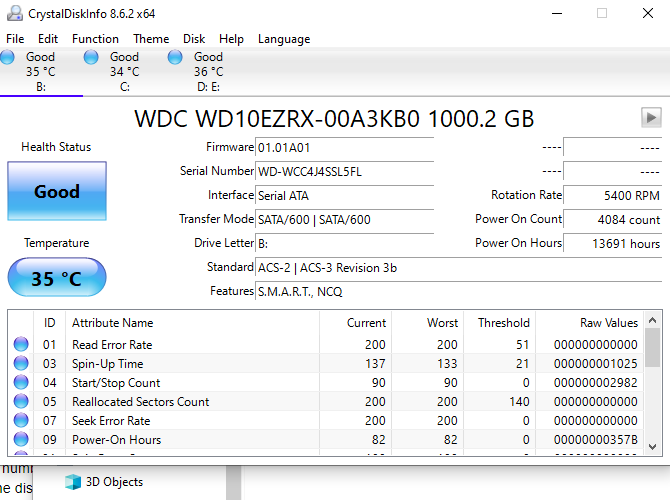
1. CrystalDiskInfo

crystal disk info temperature monitor
If your chief concern is the temperature of a hard drive, look no further than CrystalDiskInfo. This is a dedicated utility for managing the health of HDDs and SSDs and is so useful that we consider it a must-have diagnostic tool for Windows users.
13 Windows Diagnostics Tools to Check Your PC's Health Use these computer diagnostic tools to run a PC health check and fix issues. Some support Windows 10 diagnostics, specifically. Read More
With its clear and easy-to-use interface, you’ll have no trouble navigating all the information it has for you. And with all its advanced features, it’s practical enough for power users, not just newbies.
Notable features include:
  • Monitors temperatures for all system HDDs and SSDs.
  • Health Status estimates the overall health of each drive.
  • In-depth diagnostics for all read/write drive values.
  • In-depth graphs for HDD and SSD values over time.
  • Available in 32-bit and 64-bit, installed or portable.
Download: CrystalDiskInfo for Windows (Free)
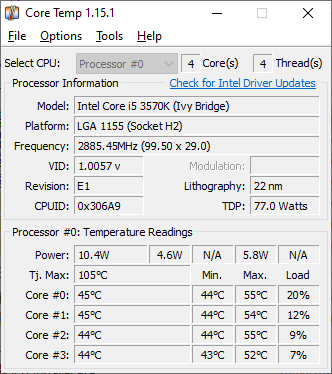
2. Core Temp

core temp temperature monitor tool
Core Temp is a fast, accurate, and flexible laptop temperature monitor. However, a word of warning: the installer comes with bundleware! You can avoid it by unchecking it, but you must pay attention during installation. Otherwise, there are no ads.

Notable features include:
  • System tray icon with real-time information.
  • Pick which sensor to display in the system tray icon.
  • Overheat protection notifies when the temperature is too hot.
  • Tracks system hardware details for reference.
  • Checks for BIOS and Driver updates.
Download: Core Temp for Windows (Free)
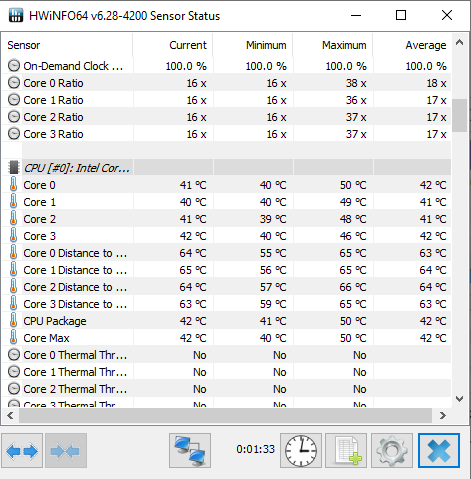
3. HWiNFO

hwinfo 64 temperature monitor
HWiNFO is a lightweight diagnostic tool for gleaming in-depth hardware information and monitoring systems in real-time. It’s a lot easier to use than it sounds. Plus, it’s actively updated—a new version about once every 1-2 months, which is great for cutting-edge systems.
Advertisement
Notable features include:
  • System tray icon with real-time information.
  • Reports for CPU, RAM, HDDs, SSDs, battery, and more.
  • Allows remote monitoring of sensor data.
  • Available in 32-bit and 64-bit, installed or portable.
Download: HWiNFO for Windows (Free)
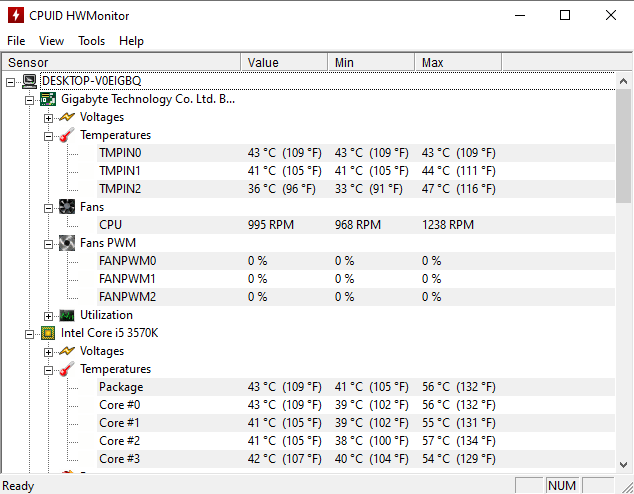
4. HWMonitor

hwmonitor temperature monitor
HWMonitor is one of the most trusted system monitoring apps currently available. The free version is more than enough for keeping tabs on temperature, but there is a Pro version with advanced features (e.g., graph generation) for €20.
Notable features include:
  • Read any sensor with voltages, temperatures, or fans.
  • Save monitoring data to a log for troubleshooting.
  • Checks for BIOS and Driver updates.
  • Available in 32-bit and 64-bit, installed or portable.
Download: HWMonitor for Windows (Free)
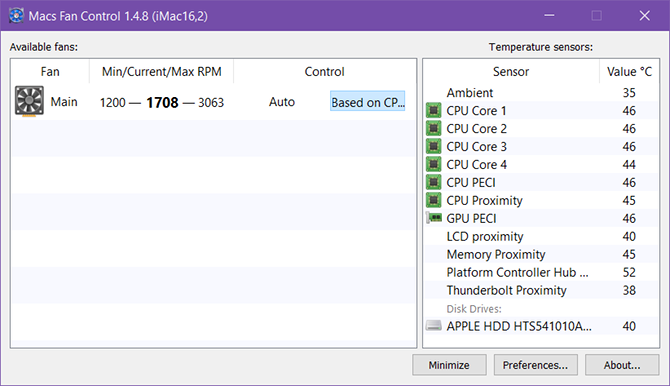
5. Macs Fan Control

windows-10-monitor-macs-fan-control
If you’re running Windows on a Mac, things get slightly tricky because the hardware in a Mac has a few proprietary quirks.
The good news is, there’s a free app designed specifically for you, and it’s called Macs Fan Control. It’s easy to use and highly recommended.
Notable features include:
  • System tray icon with real-time temperature.
  • Pick which sensor to display in the system tray icon.
  • Set custom min/max fan RPMs based on sensor values.
  • Supports sensors for third-party HDDs and SSDs.
  • Supports every model: iMac, MacBook, Mac Mini, Mac Pro.
Download: Macs Fan Control for Windows (Free)
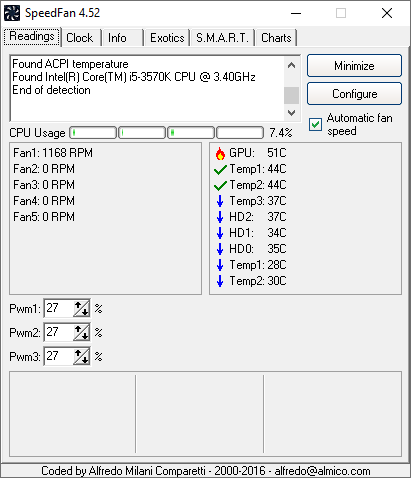
6. SpeedFan

speedfan temperature monitor
In addition to potential hardware damage, high system temperatures are problematic because they cause your laptop’s fans to work overtime. A hard-working fan wears out faster, but more importantly, fast-spinning fans are loud. Much louder than you’d anticipate. Of the many ways to silence noisy laptop fans, the easiest is to use SpeedFan to control fan revolutions per minute (RPM) manually.
6 Things You Can Do to Silence a Noisy Laptop Fan Wondering why your laptop fan is so loud? Here are several ways to get some peace and make your laptop fan quieter. Read More
What’s nice is that SpeedFan also has features for monitoring temperature, so it’s like a 2-in-1 app— just not as advanced as the others above.
Notable features include:
  • System tray icon with real-time information.
  • Read any sensor with voltages, temperatures, or fans.
  • Set custom min/max fan RPMs based on sensor values.
  • Adjust and fix incorrect temperature readings on sensors.
  • Chart values over time for troubleshooting.
Download: SpeedFan for Windows (Free)
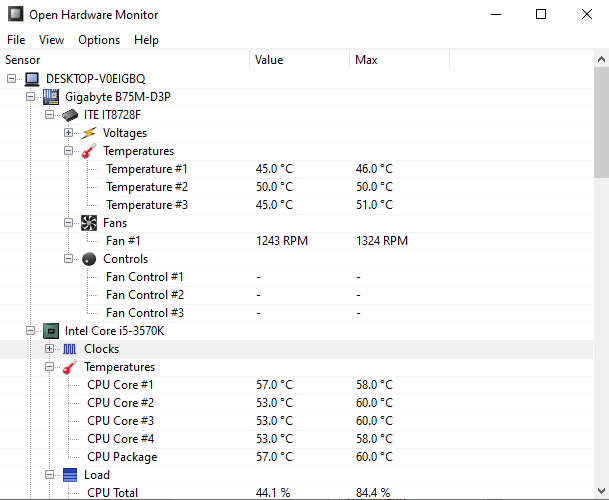
7. Open Hardware Monitor

open hardware monitor temp monitor laptops
Open Hardware Monitor is similar to HWiNFO and HWMonitor, except that it’s open-source. In fact, Open Hardware Monitor was considered a dead project, as it had not received an update since 2016 (which stopped Open Hardware Monitor working with some of the latest hardware).
However, in early 2020, Open Hardware Monitor updates began rolling out, updating the laptop temperature monitoring tool for the latest CPUs, GPUs, and other hardware.
Notable features include:
  • Read most sensors with voltages, temperatures, or fans.
  • Save sensor data to a log for troubleshooting.
  • Display data on a remote web server.
  • Portable, so no installation needed.
Download: Open Hardware Monitor for Windows (Free)
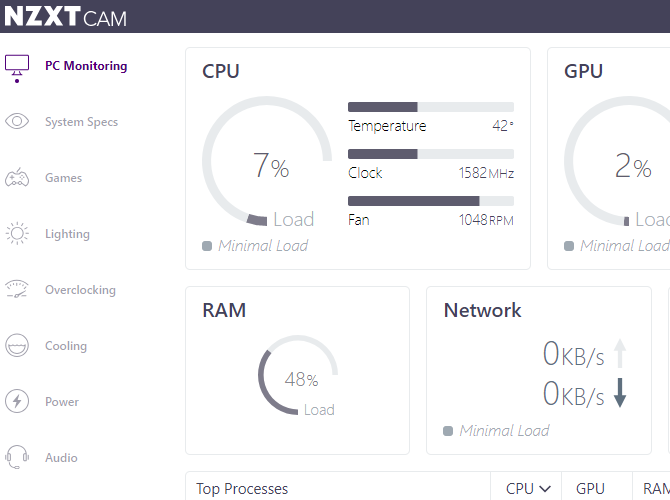
8. NZXT CAM

NZXT CAM temperature monitor tool
NZXT CAM is a temperature and hardware monitoring tool with a slick user interface and numerous options.
You might note the name of the developer, NZXT. NZXT manufactures a range of PC hardware, and as such, NZXT CAM works very well with their hardware. For instance, you can use NZXT CAM to control case lights, fan speeds, power supply voltages, and more, where supported.
Notable features include:
  • Read a wide range of temperature, fan, and speed sensors.
  • Control NZXT compatible hardware.
  • Customizable user interface.
  • Displays detailed system specifications.
  • Optional gaming overlay.
Download: NZXT CAM for Windows (Free)

Tips for Reducing Laptop Temperatures

Make sure you check temperatures when your laptop is idle (with no apps running) and under load (with performance-heavy apps running). A high idle temperature can be just as degrading as a high spike under load. Learn more about how hot is too hot for a PC.
If it is running too hot, don’t worry. You have options.
We have plenty of tips on fixing an overheating laptop and several more tips on keeping your PC cool. The most effective steps are to clean out internal dust, always use on a hard flat surface, and supplement with a laptop cooling pad.


makeuseof.com/tag/3-laptop-computer-temperature-monitor-apps-save-hard-drive/