Our library needed to purchase USB microphones, here are recommendation from the audio engineer from theverge:
https://www.theverge.com/2019/4/5/18295732/podcast-microphone-best-top-price-specs-features-rode-blue-shure
From NPR's tiny desk crew:
https://www.npr.org/sections/allsongs/2019/04/02/705579879/tiny-tech-tips-microphones
4/07/2019


3/26/2019
Linux via USB
Want to have Linux OS ready to run off of USB drive, here are some choices:
For some time, Puppy Linux has been seen as little more than a curiosity. Designed to be used on the most austere hardware, it could comfortably chug away on early Pentium machines without breaking a sweat. But it wasn’t that practical. Many installed Puppy Linux on their antique hardware to just to see if they could.
But Puppy Linux never went away. Updates and new versions are still regularly released. Sure, it’s still stripped down and meant for low-end or underpowered hardware. But you can now install Puppy Linux on a USB stick and get stuff done.
Puppy Linux isn’t a single Linux distribution. It consists of multiple versions based on different code but using the same tool and philosophy. One version is based on SlackWare, which is one of the most well-established Linux distributions.
People continue to use it as their day-to-day operating system. People understand it. Then there are multiple options based on Ubuntu, the most popular version of desktop Linux.
Are you a newcomer to Linux who just wants something simple and attractive to keep in your pocket? Check out elementary OS.
elementary OS offers a cross between the popular GNOME desktop environment and what you get on a Mac. The resulting experience is so intuitive, you can pick it up on your own with a few clicks.
This is important when you’re also dealing with the inherent performance bottleneck that comes with booting your operating system from an USB drive.
GParted is a common Linux tool used to manage these partitions. Many distributions come with this pre-installed. But if your computer doesn’t boot, that does you no good. You need a copy you can load from a USB stick.
It’s called Gparted Live, a USB Linux distro for your flash drive. Loading up this little program will let you reshape your hard drive as you require. Be careful though, as one mistake could potentially render your hard drive unbootable.
They’ll prevent anti-malware programs from updating their definitions, or even running. But you have alternatives. By booting into a special Linux distribution, you can scan your system for problems, and resolve them.
One big name in computer security is Romania-based BitDefender, who boast an array of premium and free antivirus and antimalware solutions. In terms of sheer effectiveness, BitDefender’s products tend to rank quite highly. They happen to offer a Linux live CD.
BitDefender has provided helpful instructions, where they explain how you can use the Windows tool Stickifier to create one.
Linux USB sticks aren’t all about getting work done and saving PCs. Sometimes you just want to have fun. With Ubuntu GamePack, your flash drive is like a portable gaming PC. True, you’re limited by the specs of the machine you’re borrowing, but as long as you stick to titles with modest requirements, you shouldn’t have many problems.
Ubuntu GamePack comes with software that makes gaming on Linux easier. This includes Steam, which lets you download your existing library of Linux titles. Alternatively, you can use PlayOnLinux or Wine to fire up supported Windows titles.
If you’re at a friend’s house for a LAN party, but you don’t have your own PC, Ubuntu GamePack can serve in a pinch. You can also keep copies around on different flash drives as an easy way to ensure everyone is using the same game version with the same configuration.
https://www.makeuseof.com/tag/5-best-linux-distros-installation-usb-stick/
1. Linux USB Desktop for Any PC: Puppy Linux
For some time, Puppy Linux has been seen as little more than a curiosity. Designed to be used on the most austere hardware, it could comfortably chug away on early Pentium machines without breaking a sweat. But it wasn’t that practical. Many installed Puppy Linux on their antique hardware to just to see if they could.
But Puppy Linux never went away. Updates and new versions are still regularly released. Sure, it’s still stripped down and meant for low-end or underpowered hardware. But you can now install Puppy Linux on a USB stick and get stuff done.
Puppy Linux isn’t a single Linux distribution. It consists of multiple versions based on different code but using the same tool and philosophy. One version is based on SlackWare, which is one of the most well-established Linux distributions.
People continue to use it as their day-to-day operating system. People understand it. Then there are multiple options based on Ubuntu, the most popular version of desktop Linux.
2. A More Modern Desktop Experience: elementary OS
Are you a newcomer to Linux who just wants something simple and attractive to keep in your pocket? Check out elementary OS.
elementary OS offers a cross between the popular GNOME desktop environment and what you get on a Mac. The resulting experience is so intuitive, you can pick it up on your own with a few clicks.
AppCenter provides apps built only for elementary OS
along with other essentials, like the LibreOffice suite, the GIMP image
editor, and the Audacity sound editor. This way you can hit the ground
running even if you have no idea what software is available for Linux.
10 Elementary OS AppCenter Apps That'll Make You More Productive
10 Elementary OS AppCenter Apps That'll Make You More Productive
Having an app store of
its own has really brought Elementary OS to life with a great choice of
apps. I use these AppCenter tools to improve my productivity -- perhaps
you will too.
Read More
Since elementary OS shares a lot in common with
Ubuntu, you can be confident you won’t have to deal with any hardware
compatibility gremlins. Plus, it proves to be buttery-smooth, even on
low-end hardware, like laptops and cheap Atom and Celeron-powered
machines.This is important when you’re also dealing with the inherent performance bottleneck that comes with booting your operating system from an USB drive.
3. Tool for Managing Your Hard Disk: GParted Live
Hard drives consist of chunks called partitions. Your computer’s hard drive might have just one partition for all your files and folders. Or it might have one partition for your programs and another for your documents. From time to time, you might need to resize these partitions or wipe them entirely.GParted is a common Linux tool used to manage these partitions. Many distributions come with this pre-installed. But if your computer doesn’t boot, that does you no good. You need a copy you can load from a USB stick.
It’s called Gparted Live, a USB Linux distro for your flash drive. Loading up this little program will let you reshape your hard drive as you require. Be careful though, as one mistake could potentially render your hard drive unbootable.
4. A Way to Remove Viruses: BitDefender Rescue CD
When malware strikes, it can often be game over. Your machine will run slowly, or perhaps not at all. Your files and folders will be held to ransom. Everything you do on your computer could be monitored. Worse, many viruses and Trojans are designed to actively fight removal.They’ll prevent anti-malware programs from updating their definitions, or even running. But you have alternatives. By booting into a special Linux distribution, you can scan your system for problems, and resolve them.
One big name in computer security is Romania-based BitDefender, who boast an array of premium and free antivirus and antimalware solutions. In terms of sheer effectiveness, BitDefender’s products tend to rank quite highly. They happen to offer a Linux live CD.
BitDefender has provided helpful instructions, where they explain how you can use the Windows tool Stickifier to create one.
5. A Portable Gaming Setup: Ubuntu GamePack
Linux USB sticks aren’t all about getting work done and saving PCs. Sometimes you just want to have fun. With Ubuntu GamePack, your flash drive is like a portable gaming PC. True, you’re limited by the specs of the machine you’re borrowing, but as long as you stick to titles with modest requirements, you shouldn’t have many problems.
Ubuntu GamePack comes with software that makes gaming on Linux easier. This includes Steam, which lets you download your existing library of Linux titles. Alternatively, you can use PlayOnLinux or Wine to fire up supported Windows titles.
If you’re at a friend’s house for a LAN party, but you don’t have your own PC, Ubuntu GamePack can serve in a pinch. You can also keep copies around on different flash drives as an easy way to ensure everyone is using the same game version with the same configuration.
https://www.makeuseof.com/tag/5-best-linux-distros-installation-usb-stick/
3/22/2019
Word: recovering lost files
Had a patron who closed a Word document without saving, but Autorecover was on:
https://www.easeus.com/
For Word 2013 Users:
- On the File menu, click Open, and then click Recent Documents.
- Scroll to the end of all recent documents, and then click Recover Unsaved Documents.
- If you find the Word document that you are looking for, double-click it to open it.
- Save it immediately.
https://www.easeus.com/
3/15/2019
Photo editor: Polarr
Polarr has one or two shortcomings, but it’s still a program with a
lot of depth. Who would use it? Anyone looking for the following:
https://digital-photography-school.com/
- A free or cheap alternative to Photoshop
- Includes built-in special effects and retouching tools
- Auto image enhancer often a good quick fix for eye-catching web pictures
- Intuitive to use, especially if you are familiar with sliders in other programs
- Ideal for editing images for web or online labs
- Backed up by an extensive library of online tutorials at Polarr Wiki
- Option for more complex edits with the Pro version (subscription based, but low cost).
https://digital-photography-school.com/
3/13/2019
OCR in MS Office
Extract text from a single picture
- Right-click the picture, and click Copy Text from Picture.Note: Depending on the complexity, legibility, and the amount of text shown in the picture you’ve inserted, this command may not be immediately available on the menu that appears when you right-click the picture. If OneNote is still reading and converting the text in the image, wait a few moments and then try again.
- Click where you’d like to paste the copied text, and then press Ctrl+V.
Extract text from the images of a multiple-page file printout
- Right-click any of the images, and then do one of the following:
- Click Copy Text from this Page of the Printout to copy text from only the currently selected image (page).
- Click Copy Text from All the Pages of the Printout to copy text from all the images (pages).
- Click Copy Text from this Page of the Printout to copy text from only the currently selected image (page).
- Click where you’d like to paste the copied text, and then press Ctrl+V.
2/26/2019
Phone chargers
This 40-watt four-port charger is just as wide as Apple’s iPad charger
but larger in its other dimensions because of its extra ports. It plugs
directly into an outlet instead of using a detachable power cable, but
thanks to the orientation of its prongs, it covers only a single outlet
instead of crowding your power strip or wall plate. Anker’s PowerIQ
technology identifies what kind of device is plugged into each port and
delivers the proper amperage without your having to figure out the
“right” USB port for each device.
https://thewirecutter.com/reviews/best-multiport-usb-wall-charger/
https://www.nytimes.com/2018/10/03/smarter-living/how-to-charge-phone-faster.html
https://thewirecutter.com/reviews/best-multiport-usb-wall-charger/
https://www.nytimes.com/2018/10/03/smarter-living/how-to-charge-phone-faster.html
2/16/2019
Word tutorials
Lots of places to get online tutorials for Microsoft Word:
https://support.office.com/
https://www.linkedin.com/
https://edu.gcfglobal.org/en/word2016/
https://support.office.com/
https://www.linkedin.com/
https://edu.gcfglobal.org/en/word2016/
2/08/2019
wifi heat maps
Freeware signal heatmapper from Ekahau:
https://www.ekahau.com/products/heatmapper/overview/
- Find optimal location or configuration (such as channel) for your access point(s)
- Check that the settings (security, channel, SSID) of your access points are correct
- Find all the Wi-Fi networks (access points) in the area, and their locations
- Detect and locate open, unsecured networks
https://www.ekahau.com/products/heatmapper/overview/
1/16/2019
Web-based photo tools: Photopea and VSCO
"Adobe Photoshop is the king of image editors, but it costs a pretty penny. But don’t worry, you can get most of its best features for free through a few online tools.
Photopea (Web): The Best Free Online Photoshop Alternative
https://www.makeuseof.com/tag/free-online-image-editing-tools-replace-photoshop/
Founded in 2011 by Joel Flory and Greg Lutze, VSCO has pioneered our mobility at editing and stepping up our photography game. They were the first to introduce beautiful preset of filters that we would actually use and it became super trendy. There was a time where every single piece of content on the Internet had a "VSCO-inspired" set of style in their images. Another aspect I love from the team over VSCO is the ability to explore the world made by their community members around the globe. Shared creativity at its best! Nowadays the same "VSCO-inspired" style is being used and sold by many through Lightroom CC presets.
https://abduzeedo.com/lightroom-cc-v-vsco-photo-editing-app-comparison
12/19/2018
Windows Sandbox
Windows Sandbox is a new lightweight desktop environment tailored for safely running applications in isolation.
How many times have you downloaded an executable file, but were afraid to run it? Have you ever been in a situation which required a clean installation of Windows, but didn’t want to set up a virtual machine?
At Microsoft we regularly encounter these situations, so we developed Windows Sandbox: an isolated, temporary, desktop environment where you can run untrusted software without the fear of lasting impact to your PC. Any software installed in Windows Sandbox stays only in the sandbox and cannot affect your host. Once Windows Sandbox is closed, all the software with all its files and state are permanently deleted.
Windows Sandbox has the following properties:
Prerequisites for using the feature
How many times have you downloaded an executable file, but were afraid to run it? Have you ever been in a situation which required a clean installation of Windows, but didn’t want to set up a virtual machine?
At Microsoft we regularly encounter these situations, so we developed Windows Sandbox: an isolated, temporary, desktop environment where you can run untrusted software without the fear of lasting impact to your PC. Any software installed in Windows Sandbox stays only in the sandbox and cannot affect your host. Once Windows Sandbox is closed, all the software with all its files and state are permanently deleted.
Windows Sandbox has the following properties:
- Part of Windows – everything required for this feature ships with Windows 10 Pro and Enterprise. No need to download a VHD!
- Pristine – every time Windows Sandbox runs, it’s as clean as a brand-new installation of Windows
- Disposable – nothing persists on the device; everything is discarded after you close the application
- Secure – uses hardware-based virtualization for kernel isolation, which relies on the Microsoft’s hypervisor to run a separate kernel which isolates Windows Sandbox from the host
- Efficient – uses integrated kernel scheduler, smart memory management, and virtual GPU
Prerequisites for using the feature
- Windows 10 Pro or Enterprise build 18305 or later
- AMD64 architecture
- Virtualization capabilities enabled in BIOS
- At least 4GB of RAM (8GB recommended)
- At least 1 GB of free disk space (SSD recommended)
- At least 2 CPU cores (4 cores with hyperthreading recommended)
Quick start
- Install Windows 10 Pro or Enterprise, build 18305 or newer
- Enable virtualization:
- If you are using a physical machine, ensure virtualization capabilities are enabled in the BIOS.
- If you are using a virtual machine, enable nested virtualization with this PowerShell cmdlet:
- Set-VMProcessor -VMName <VMName> -ExposeVirtualizationExtensions $true
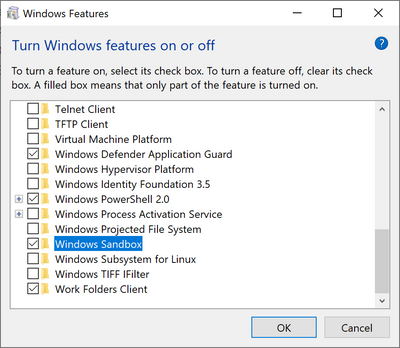
- Open Windows Features, and then select Windows Sandbox. Select OK to install Windows Sandbox. You might be asked to restart the computer.
- Using the Start menu, find Windows Sandbox, run it and allow the elevation
- Copy an executable file from the host
- Paste the executable file in the window of Windows Sandbox (on the Windows desktop)
- Run the executable in the Windows Sandbox; if it is an installer go ahead and install it
- Run the application and use it as you normally do
- When you’re done experimenting, you can simply close the Windows Sandbox application. All sandbox content will be discarded and permanently deleted
12/12/2018
Windows 10 repair options, SFC and DISM
Using SFC and DISM for system repair
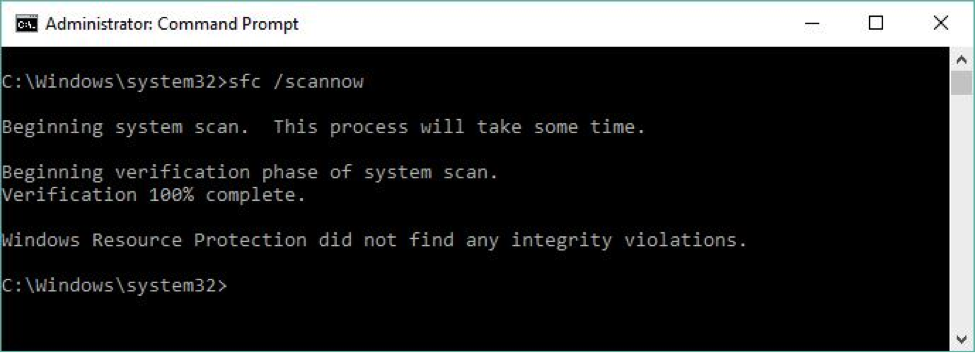
To quote TechNet, the system file checker "scans and verifies versions of all protected system files." It can tell you if it finds anything amiss if you enterSFC /scannow
at the command line. You must run this utility from an Administrator:
Command Prompt (press the Windows key-X combination), and then select
Command Prompt (Admin) from the resulting pop-up menu. This command
takes 5-10 minutes to complete, depending on your PC hardware. This
command also attempts repairs if it finds anything that needs it. Figure
1 shows some sample output.
 Ed Tittel
 SFC determines that a protected file is damaged or changed, it grabs a correct version of the file from the C:\Windows\system32\dllcache
folder and replaces it with a good copy. SFC can even attempt to repair
that file cache if it finds changes or damage there, too. See the
TechNet SFC reference for complete information on this command.
But as repair tools go, SFC is fairly lightweight. DISM is much more powerful and capable. DISM can often fix things that SFC can detect but that it cannot itself fix. DISM supports a raft of capabilities with switches and parameters to match, but basic system file repair syntax is reasonably easy (though it often requires multiple passes before it can set things straight). Here's some sample syntax (consult the TechNet DISM Technical Reference for all the gory details):
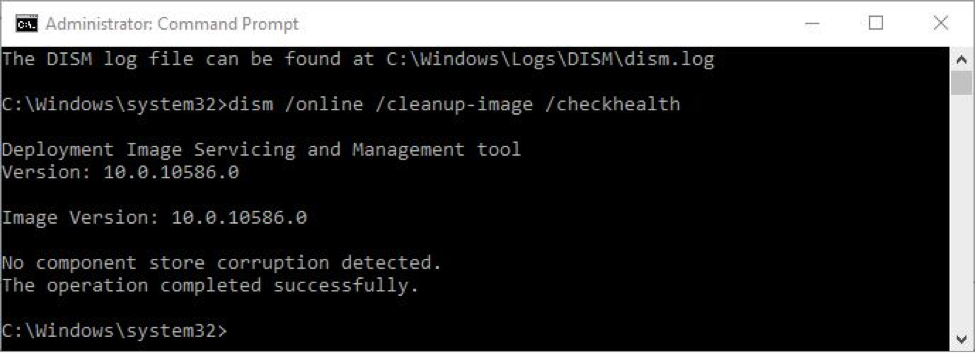
dism /online /cleanup-image /checkhealth
dism /online /cleanup-image /restorehealth [/Source: <source-info>]
As with SFC, you must also run DISM in an Administrator: Command Prompt window. The
/checkhealth command simply checks the running image (that's what /online
tells it to do) to see if it can detect any damage or corruption.
Because it's only checking file hashes and signatures, this command
completes in under one minute on most machines. The good thing about /check
is that it not only tells you if it finds damage but if that damage is
repairable or non-repairable. If it's repairable, you can proceed to the
/restorehealth option (covered in the next paragraph); if it's non-repairable, jump to Step 2.
 Ed Tittel
 /restorehealth option.
/restorehealth command can be tricky to use. Because it
can actually repair the Windows image, it needs a source from which to
attempt such repairs. You can omit the /source option, but
if you do the command will try to grab its files from Windows Update
over the Internet. This may or may not work, depending on firewall
settings on your network. A safer bet is to point DISM at a known good
source for Windows image components on the local machine (or on your
local network). This can be a Windows image (.wim) file or a compressed Windows image (.esd,
which is used for electronic software downloads of Windows
installations, as the file extension is meant to communicate). You can
also point to a copy of a WinSXS folder (the usual directory path is C:\Windows\WinSXS) taken from another PC with similar or identical hardware for which dism … /checkhealth returns a clean bill of health.
https://www.computerworld.com/article/3080839/microsoft-windows/your-step-by-step-guide-to-repairing-windows-10.html
12/09/2018
Gboard settings
Had a patron with a new Android phone, was a bit stumped on how to get to the settings to customize the virtual keyboard.
Gboard is turned off on the Android launcher by default, so you have to get it by tapping on the ">" button (left of the top bar), then clicking on the "gear icon" get to settings
m.wikihow.com/
Gboard is turned off on the Android launcher by default, so you have to get it by tapping on the ">" button (left of the top bar), then clicking on the "gear icon" get to settings
- Access Gboard’s keyboard settings. Launch the Gboard app and tap "Keyboard Settings". A list of keyboard settings will appear.

- Toggle Glide Typing. Glide typing is a feature that allows you to type words by sliding your finger from key to key without lifting it away from the keyboard. This feature is unique to google keyboard and will not appear in the iOS settings.
- The toggle will turn blue when it is on, gray color indicates that it is off.

- Toggle Emoji Suggestions. This feature recommends emojis in along with word suggestions as you type (e.g. typing the word ‘happy’ will suggest a smiley face in place of the word).

- Toggle Auto-correction. This feature automatically changes misspelled words as you type. Keep an eye on names and places when this feature is turned on - they may not be recognized by the auto-correct dictionary and changed to something you don’t want.

- Toggle Auto-capitalization. This will automatically capitalize words at the beginning of sentences as well as recognized proper nouns like names.


m.wikihow.com/
11/29/2018
Word 2016: transferring Autocorrect entries
AutoCorrect entries -- where are they kept in Word 2016?
%appdata%\Microsoft\Office\MSO1033.acl just need to transfer that file from old PC to new one.
From answers.microsoft.com
%appdata%\Microsoft\Office\MSO1033.acl just need to transfer that file from old PC to new one.
From answers.microsoft.com
Question:
Until today, I was using Word 2003; now I am using Office 2016. I have (yes, literally) thousands, perhaps tens of thousands, of AutoCorrect entries that I want to transfer into Word 2016. Entering them all manually would be a massive undertaking. I know where to find the .acl file that they were stored in for Word 2003. My problem is where to find the corresponding file for Office 2016.
Secondarily, I'm hoping I can simply copy the old .acl file to a new location. If it's now in a different format, that becomes a second problem. But let's start with the question of where the new .acl (or other extension) file is now kept. Is anyone here able to answer that question, I hope?
Answer:
No, you can't rename your .acl file to use with the AutoCorrect template. You would have to run the equivalent program for Word 2003 from http://www.word.mvps.org/FAQs/Customization/ExportAutocorrect.htm in order to get a backup document in the correct format.
You may be able to substitute your 2003 .acl file for the one created by Office 2016. I don't think the file format has changed, but I'm not sure of that. It's worth a try, though.
With all Office programs shut down, start File Explorer. Type or paste into the address bar the path
%appdata%\Microsoft\Office
(The "environment variable" %appdata% automatically expands to the hidden AppData folder in your Windows profile.)
In the Office folder, you should see a file named MSO1033.acl, which is the AutoCorrect file for English (US). If your default language is something else, in the following instructions you must substitute the one with the correct locale ID number.
Move the MSO1033.acl file to a different folder, so you can move it back again if the procedure doesn't work.
Now copy the old .acl file into the Office folder, using the same name as the file you moved out.
Start Word and/or another Office program and look in the AutoCorrect Options dialog. If you see the complete list of entries that you expect, you're in luck. Otherwise, bring the original Office 2016 .acl file back into the Office folder and start adding entries the hard way.
11/17/2018
Error: PAGE FAULT IN NON PAGED AREA
From https://support.microsoft.com/
Many stop errors can be fixed by updating Windows. In the search box on the taskbar, type
Windows Update, then select Windows Update. On the Windows Update page,
select Check for updates.
Windows Update, then select Windows Update. On the Windows Update page,
select Check for updates.
Driver updates for Windows 10 and many devices are downloaded and installed through
Windows Update. To update or reinstall drivers, see the following support articles:
Update drivers in Windows 10
Windows Update. To update or reinstall drivers, see the following support articles:
Update drivers in Windows 10
Windows Defender periodically scans your device for potential problems. To see the results
of the most recent scan, type “Windows Defender” on the search bar and select
Windows Defender Security Center. Select Device performance & health. If there are
problems with your device’s update history or drivers, they’re displayed here.
of the most recent scan, type “Windows Defender” on the search bar and select
Windows Defender Security Center. Select Device performance & health. If there are
problems with your device’s update history or drivers, they’re displayed here.
For more information, see the following support article: Track your device and
performance health in Windows Defender.
performance health in Windows Defender.
11/09/2018
Android: turn off dots
If you want to quickly disable dots for an app that you currently have a notification for, it's quite easy to do so. Drop the notification shade, find a notification from the target app and swipe it just slightly left or right — but not all the way — so that you get the settings cog for it but don't clear it out entirely. Continue by following the instructions here:

Customize every app through settings
If you don't have an outstanding notification currently and / or want to go in and edit notification dot permissions for a number of apps, you need to go the long way. Enter Settings and follow the steps below:

Disable them globally
If you don't like the notion of Notification Dots at all, just disable them globally. This is done pretty easy through Settings — here's how:

https://www.phonearena.com/
10/29/2018
permanent link service
Perma.cc is a service that helps prevent link rot. Use it to preserve
the online sources you cite and to make those records accessible to your
readers.
https://perma.cc/docs
https://perma.cc/docs
10/17/2018
Regular charger vs Turbo charger
Patron asked me if it is OK to use regular charger with new Quick charge Android phone: Yes
https://www.consumerreports.org/
https://www.androidpolice.com/
There are several types of rapid phone chargers. Some work by feeding the phone at a higher voltage (9 volts instead of the 5 volts put out by standard USB chargers). Others, such as the DASH system used by the OnePlus 3 smartphone in our ratings, keep the voltage at 5V but raise the amperage (4A vs. 2A for standard phone chargers).
But although the new phone chargers are built for speed, they default to a slower charging setting that's safe for all smartphones (5 volts at 500mA to 2A) when they sense they've been plugged into an unsupported device.
Qualcomm, which is known for its Snapdragon smartphone processors, is also behind the rapid-charging Quick Charge tech found in more than 100 smartphone models, including flagship phones from Samsung, Motorola, HTC, and others. (On some Motorola smartphones, Quick Charge is branded Turbo Charge.)
“There’s a lot of intelligence built into the charging process, with algorithms that help the adapter determine what the phone can take,” says Geoff Gordon, a marketing manager at the company.
It doesn't matter if that phone charger’s amp rating is higher than the one shown in your phone battery’s specs. The phone takes only the current it can handle. Consequently, when you plug a fast-charging phone into a conventional phone charger, it will charge at a slower rate.
Onboard microprocessors monitor and manage the battery’s state of charge and health to ensure that they get what they need at a rate they can handle. And that works across ecosystems. In other words, it makes no difference that iPhones use Apple’s lightning connector and Android phones use micro USB or the new USB Type-C connectors. If you plug the cable that came with your phone into the USB port of any phone charger, it should work safely.
https://www.consumerreports.org/
https://www.androidpolice.com/
9/26/2018
Checking lockout status on windows domain
To check if user is locked out of windows domain, there is freeware tool:
Account Lockout Status (LockoutStatus.exe) is a combination command-line and graphical tool that displays lockout information about a particular user account.
From Microsoft
Account Lockout Status (LockoutStatus.exe) is a combination command-line and graphical tool that displays lockout information about a particular user account.
From Microsoft
9/24/2018
creating user via command line
To add local user account via command Line, that never expires and user can not change:
net user John thePassWord /ADD /passwordchg:NO
WMIC USERACCOUNT WHERE "Name='John'" SET PasswordExpires=FALSE
To add that user to Adminstrator group:
net localgroup "Administrators" John /add
https://www.lifewire.com/net-user-command-2618097
https://serverfault.com/questions/434717/how-to-create-a-never-expiring-password-user-via-net-user-through-bat-file
9/14/2018
photo editing tools
For list of free photo editors
Pixlr is rated highly:
GIMP is also well rated:
Pixlr is rated highly:
If you're ready to do a deep dive into photo editing, Pixlr Editor is a great choice. It has extensive features and offers many of the same powerful tools as Photoshop. You can perform numerous complex operations in Pixlr: working in layers for compositing or to finetune effects; using color correction and sharpening tools to make your subject pop; and superimposing text, shapes, and other elements onto your image for eye-catching originality and flair.The app comes in several different flavors: The web app, a free downloadable desktop app, a Chrome extension, and an online Express version that just lets you add quick Instagram-style filters, overlays, and stickers.
GIMP is also well rated:
A free, open-source, image editor, the GNU Image Manipulation Program (GIMP) has been a go-to tool for Linux users for years, but has a reputation for being hard to use and lacking many of Photoshop’s features. The reality has changed dramatically over the last couple years. GIMP now has a very competent user interface, as well as an extensive and powerful set of features. Its openly extensible nature means that in some areas, like running well-known image processing algorithms on your photos, it actually outshines Adobe Photoshop. From extremetech
Subscribe to:
Posts (Atom)