HTML, CSS, batch commands, and Javascript examples that I have used in my library work. Short entries, designed as quick reference. By Len Davidson at CUA Law Library
You just have to find one jumper which is normally under hard drive. This works at least with Dell Optiplex 6xx and 7xx series.
Jumper is normally marked with text “PSWD” and it’s pretty easy to find because it’s probably blue/green when other jumpers are black and smaller.
First of all shutdown your computer and unplug power supply cable from back of your computer.
Open the case and you should see hard drive. Remove it (no need to unplug cables) and you should see “PSWD” labeled jumper under the hard drive.
Remove the jumper and plug power cord back to computer and turn on the computer. You should soon see “password” removed” text on the screen.
Power off your computer and unplug power cord again. Now you just need to put jumper back where you removed it and put hard drive back and close the cover.
Plug power supply cable again back and turn on your computer. If you hit F2 right away when you see text on the screen you should access the BIOS menu and you should notice that password is gone now and you can access everything on BIOS and you can even change password if you want (no need to do that).
Step 1 – Copy VOB File:
Your first task is to copy the .vob file from the DVD to your hard
drive. Find your .vob files, they are usually in the VIDEO_TS folder of
our DVD. You can’t rename the .vob file on a DVD because DVDs are read
only, so copy the .vob file from the DVD to your hard drive.
Step 2 – Rename VOB File To MPEG: Windows Users (Right-Click) Right click the .vob file on your hard drive and choose Rename from the menu. Rename VTS_01.vob to VTS_01.mpeg.
Step 3 – Import & Edit MPEG Video File:
Import
the file into a video editing application, such as Premiere Essentials,
Premiere Pro, Windows Movie Maker or iMovie. Once the file is imported,
drag the video file from the project panel to the timeline. If you have
multiple files, place them in the desired order, creating a sequence of
clips and events, which play in the timeline from left to right. When
you have finished editing the timeline, you can play it back in real
time or export it in a variety of formats.
The successor to Windows Movie Maker is easy and fun to use
Very simple to use
Pre-installed with Windows 10
Good choice of filters and effects
No multi-track timeline
The
Fall Creators Update brought many fun and useful new features to
Windows 10, including a video editor that's a direct replacement for
Windows Movie Maker. Interestingly, it's tucked away in the Microsoft Photos app, but it's easy to use and very accessible for beginners.
Start
by choosing your media files (photos and video) and arranging them in a
sequence. You can then make some simple edits (like trimming video
clips and applying filters), apply fun motion effects and titles, and
set the whole thing to a lively soundtrack.
You don't get quite as
much granular control as you did in Windows Movie Maker (you don't have
separate tracks for video and audio, for example). but the effects and
transitions are vastly improved, and it's much easier for a complete
beginner to achieve good-looking effects. Once you're done, you can save
the video to your PC or share it straight via Skype, YouTube or
OneNote. You won't find a more direct replacement for Windows Movie
Maker
Q.What is the best antivirus software for a Mac laptop?
A. Macs, with built-in protections
and fewer users than Windows systems, have traditionally been less of a
target for virus makers — but these factors do not make Apple’s
computers invulnerable. Macs have been targeted by ransomware and other malware before, and bad browser extensions, phishing sites and socially engineered fraud schemes are cross-platform problems.
Given the general security features of the operating system, Wirecutter, a product review and testing site owned by The New York Times, recommends Malwarebytes Premium
($40 a year) to shore up the Mac’s own defenses against malicious
software. Some security programs can slow down your system, but
Malwarebytes Premium was selected for its effectiveness while being
relatively nonintrusive.
In addition to its Premium version, which monitors your Mac in real time, Malwarebytes for Mac
is available in a free edition that scans for any malware already on
your system. When you download the free version, you get a complimentary
30-day trial of the Premium product so you can give it a test run
before getting out the credit card.
If a free antivirus program fits your budget better, several tech-focused publications (including Macworld, TechRadar and Tom’s Guide) favor Avast Free Mac Security. The $60 Avast Security Pro for Mac adds protections against ransomware and intruders on your home wireless network.
PCMag.com, which independently tests a wide range of security programs for Mac and Windows computers each year, has chosen BitDefender Antivirus for Mac as its 2018 Editors’ Choice pick.
The $48 all-around security suite also includes virtual private network
(VPN) protection to protect your personal data going over a computer’s
connection to the internet.
Go to File Explorer and hit the following path in the search address.
C:\Users\YourUsername\AppData\Local\Packages
Make sure you give your user account name in the path by replacing YourUsername with the user account name.
Hit Enter.
Search for Microsoft.MicrosoftEdge_8wekyb3d8bbwe folder and right-click on it.
Select Properties and uncheck the Read-Only option in the Properties window.
Click Apply and OK.
Search for Microsoft.MicrosoftEdge_8wekyb3d8bbwe folder. Right click
on it and delete. If you get the prompt saying “Folder Access Denied”,
click on continue. This will delete most of the content inside the
folder except AC folder.
Restart your computer.
To re-register your Microsoft Edge, search Windows PowerShell in Start menu.
In the search results, right-click on it and select Run as administrator.
In the PowerShell Window, type the following command and hit Enter.
Cd C:\Users\YourUsername
Make sure you give your user account name in the path by replacing YourUsername with the user account name.
These programs start up for all users. To open this folder, bring up the Run box, type shell:common startup and hit Enter.
Or to open the folder quickly, you can press WinKey, type shell:common startup and hit Enter.
You can add shortcuts of the programs you want to start with you Windows in this folder.
Resetting lets you choose whether to keep your files or remove them, and then reinstalls Windows. To get started, go to Settings > Update & security > Reset this PC > Get started and choose an option.
If you can't open Settings, you can get to reset by restarting your PC from the sign-in screen. Press the Windows logo key +L to get to the sign-in screen, then hold the Shift key down while you select Power > Restart in the lower-right corner of the screen. After your PC restarts, select Troubleshoot > Reset this PC.
If you can't get to the sign-in screen, use a recovery drive or installation media to reset your PC.
Option
What it does
Keep my files
Reinstalls Windows 10 and keeps your personal files.
Removes apps and drivers you installed.
Removes changes you made to settings.
Removes any apps your PC manufacturer installed. (If your
PC came with Windows 10, apps from your PC manufacturer will be
reinstalled.)
Remove everything
Reinstalls Windows 10 and removes all your personal files.
Removes apps and drivers you installed.
Removes changes you made to settings.
Removes any apps your PC manufacturer installed. (If your
PC came with Windows 10, apps from your PC manufacturer will be
reinstalled.)
If you're planning to donate, recycle, or sell your PC, use
this option and choose to fully clean the drive. This might take an hour
or two, but it makes it harder for other people to recover files you've
removed.
Restore factory settings
Reinstalls the version of Windows that your PC came with (either Windows 8 or Windows 8.1) and removes your personal files.
Removes apps and drivers you installed.
Removes changes you made to settings.
Reinstalls any apps your PC manufacturer installed on your PC.
Microsoft Edge no longer uses search providers you have to install
from Microsoft’s website. Instead, when you visit a web page that uses
the “OpenSearch” standard to expose its search engine information, Edge
notices this and makes a record of the search engine information.
This is the same way Google Chrome works, too—visit a web page with OpenSearch and Chrome will automatically detect it.
All you need to do is visit the search engine’s website to add that search engine to Edge. If you want to install Google, visit Google’s homepage. Once you’ve done so, you can make it the default using the instructions below.
Not every search engine supports OpenSearch yet, but we expect search engines will add support for this very quickly.
To change your search provider, click the menu button—that’s the
button with three dots at the top-right corner of the Microsoft Edge
window. Select “Settings” in the menu.
Scroll down in the “Settings” panel and click the “View advanced settings” button near the bottom.
Scroll down in the “Advanced settings” panel and you’ll see the
“Search in the address bar with” setting. Click the “Change search
engine” button.
You’ll see a list of available search providers. Select the search engine you want to use and click or tap “Set as Default”.
If the search engine you want to use doesn’t appear here, be sure
you’ve visited the search engine’s homepage first. If you have visited
the homepage and it still doesn’t appear, that search engine doesn’t
support OpenSearch yet. You may want to contact the search engine and
ask it to support OpenSearch so you can use it as your default search
engine in Microsoft Edge.
To set up a PuTTY SSH connection, you must download the following:
The private key file generated by the Sierra Administrative Application. Sierra provides the private key in the OpenSSH file format.
The PuTTY SSH client program (putty.exe)
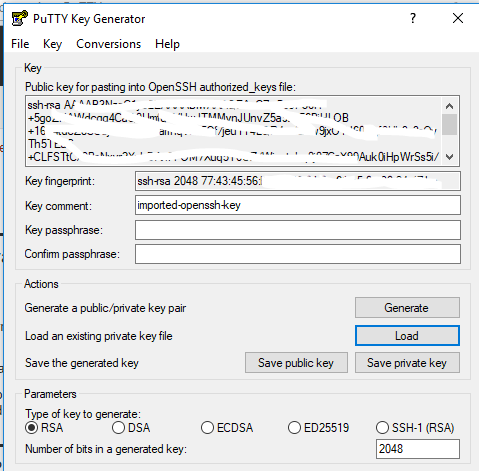
The PuTTYgen utility (puttygen.exe), which is used for converting the Sierra private key file into PuTTY's own private key file format
First go into Sierra admin module, download Private Key File
PuTTY stores SSH private key files in the .ppk file format. To convert the OpenSSH private key file provided by the Sierra Administrative Application into a .ppk file, do the following:
Start the PuTTYgen key generation utility.
Click the Load button to load an existing private key file.
In the Load Private Key dialog box that opens, locate the drop-down selector in the lower right corner that provides file search options. Change the selection to "All Files (*)", and navigate to the directory containing the private key file downloaded in step 2. Click the Open button.
Click OK when prompted with the message "Successfully imported foreign key ....To use this key with PuTTY, you need to use the 'Save private key' command'."
Confirm that "RSA" is selected. You can find this option on PuTTYgen's main window at the bottom in the Parameters: Type of key to generate section. For the Number of bits in a generated key value, use the default of "2048".
Click Save private key.
Click Yes when PuTTYgen displays a warning window with the question "Are you sure you want to save this key without a passphrase to protect it?".
From the Save private key as dialog box, select the name of the PuTTY private key file, the location at which you want to store the file, and the file type. Use the file type "PuTTY Private Key Files (*.ppk)" when saving the PuTTY private key.
You can save your PuTTY configuration settings for Admin Corner access for future use. To save your configuration, do the following:
Start the PuTTY client program.
Configure the settings on the Session panel.
Click the Session option in the Category pane on the left-hand side of the screen.
In the Host Name (or IP address) field, enter your Sierra app server host name or IP address.
In the Port field, enter "22".
In the Connection type section, select "SSH".
Configure the settings on the Data panel.
Click the Connection | Data option in the Category pane on the left-hand side of the screen.
In the Auto-login username field, enter "-------" with no quotation marks.[see documentation]
Configure the settings on the Auth panel.
Click the Connection | SSH | Auth option in the Category pane on the left-hand side of the screen.
Click the Browse button under the text "Private Key file for authentication".
Navigate to the directory where you saved the PuTTY-generated private key file (*.ppk), select the file, and click Open.
Save your session configuration for Sierra Admin Corner on the Session panel
Click the Session option in the Category pane on the left-hand side of the screen.
In the blank field under the text Saved Sessions, enter a name for your Sierra Admin Corner session.
When you're browsing through your hard drive in File Explorer, most folders open quickly. However, the Downloads
folder, can take much longer to fully load.
The slow-loading Downloads folder problem occurs because, by default,
Windows is trying to create thumbnails for photos and videos in the
folder, even if none of the files are pictures. With a quick settings
change, you can make the Downloads folder open quickly in Windows 7, 8
or 10. Here's how.
1. Open File Explorer. You can get there by hitting Windows Key + E or clicking on the explorer icon in your taskbar.
2. Right click on the Downloads shortcut in the right window pane and select Properties.
3. Navigate to the Customize tab.
4. Select "General items" from the "Optimize this folder for:" list.
5. Click Ok.
To enable HTTPS on your website, you need to get a certificate (a type of file)
from a Certificate Authority (CA). Let’s Encrypt is a CA. In order to get a
certificate for your website’s domain from Let’s Encrypt, you have to demonstrate
control over the domain. With Let’s Encrypt, you do this using software that uses
the ACME protocol, which typically runs
on your web host.
Android O looks to improve upon every
good thing Android Nougat brought along, and then some. With Android O,
we’re getting Notification Channels, which are
basically categories that an app can classify its notifications into.
This means that instead of having to change notification settings for an
entire app, users will now get even more fine-grained control over the kinds of notifications they want. Notification Controls in Android O (left) vs Android Nougat (right)Notifications can also be snoozed in Android O, and
this really does look like a good feature. Users will be able to simply
swipe a notification, and tap on the snooze icon to snooze the
notification for a default time of 15 minutes. This can be extended (at
least in the current Developer Preview) to a maximum of 1 hour.
Personally, I’d like to have some sort of custom time here, the way
“Inbox” handles snoozing emails, but this is just the first Developer
Preview, so there’s a lot of time for that. Notification Options in Android O (left) vs Android Nougat (right). The clock icon is Snooze.
There’s also a minor change in the way the Notification Shade behaves
on Android O. While double swiping on the Status Bar in Android Nougat used to hide some of the lower notifications in order to properly display the Quick Settings panel, Android O converts them into small app icons
on the bottom of the Notification Shade instead. So while the Quick
Settings panel gets displayed properly, you’ll still be able to see the
apps that have pending notifications, without having to swipe back up.
F-Droid is an installable catalogue of FOSS (Free and Open Source
Software) applications for the Android platform. The client makes it
easy to browse, install, and keep track of updates on your device.
With a Windows 10 installation DVD or USB memory stick lying
around, or if you can create one, you can use it to boot your
broken PC with Windows 10 into Safe Mode. To create a Windows 10 installation drive, follow the steps from this tutorial: How to download Windows 10 Creators Update and create your own installation media.
Then use it to boot your broken Windows 10 PC from it and wait for the
installation environment to load. Choose the language and keyboard
layout you prefer and click or tap on Next.
Next, click or tap on the link that says “Repair your computer” on the bottom left corner of the screen.
Click or tap on Troubleshoot.
On the “Advanced options” screen, click/tap on “Command Prompt (Use the Command Prompt for advanced troubleshooting).”
Now Command prompt will load. Inside it, write the command: bcdedit /set {default} safeboot minimal. Then press Enter on your keyboard.
After a moment, Command Prompt tells you that “The operation [was] completed successfully.”
Then close the Command Prompt and choose to Continue on the next screen.
After your PC reboots, Windows 10 will automatically boot into Safe Mode.